Let’s break DAX down into five parts:
1. Understanding Filter Context and CALCULATE()
Filter context defines what data is visible to your DAX expression. It comes from visuals, slicers, filters, or cross-highlighting.
Example:
- A matrix visual showing Total Sales grouped by Customer and Product Category automatically filters the data.
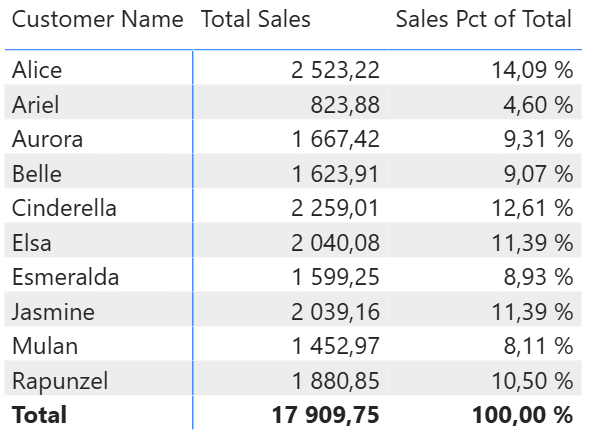
- Want to override this? Use the CALCULATE() function.
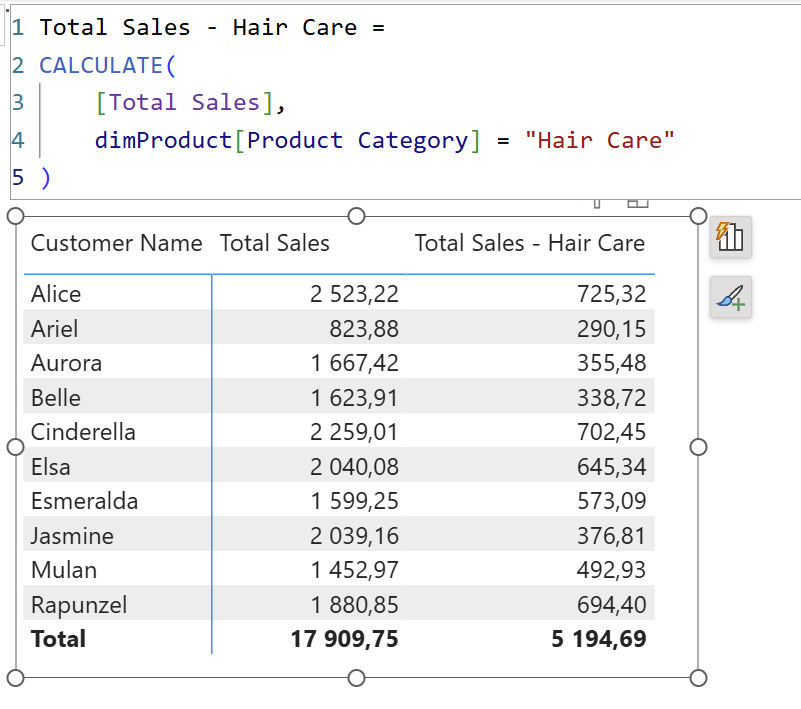
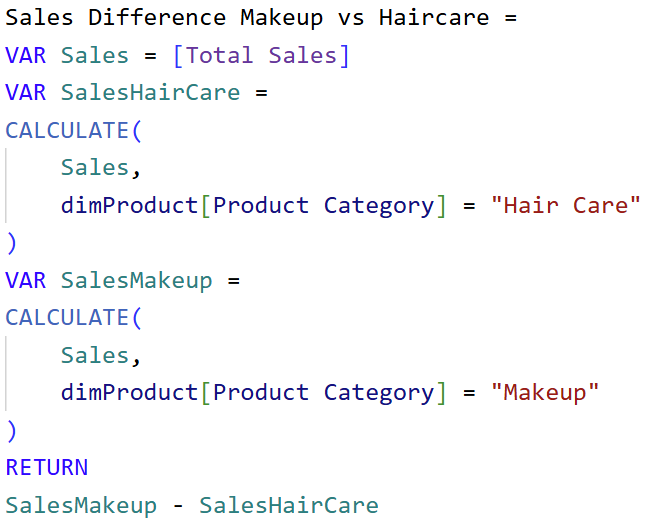
Repeat the logic for other categories (e.g., Makeup) and then compute the difference using another measure:
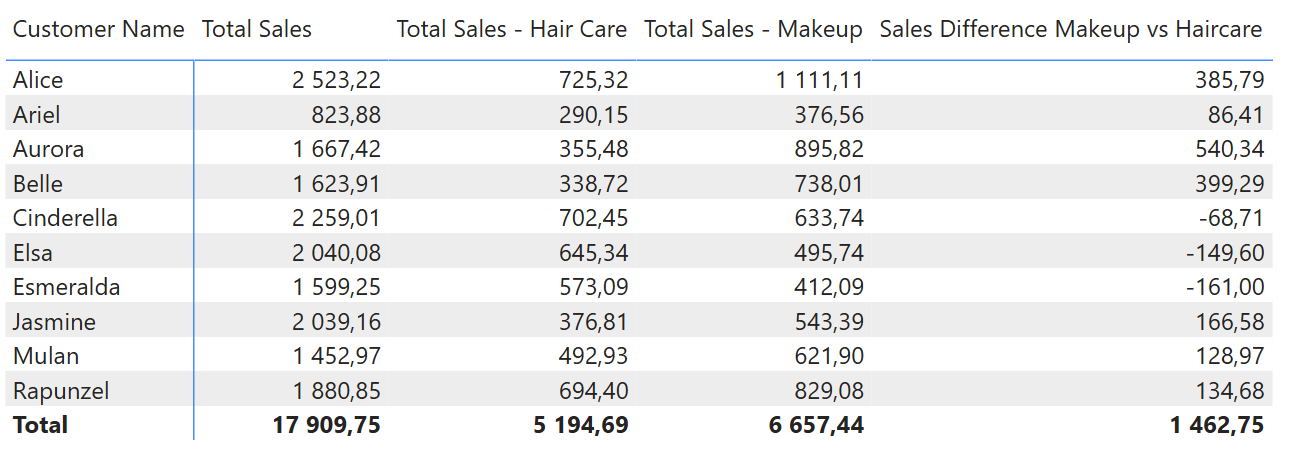
Note: If you use the same field (Category) in the visual and in CALCULATE, the function overrides the visual’s context.

2. Use Variables to Simplify and Debug Measures
You can write complex calculations more cleanly with VAR and RETURN.
Example:
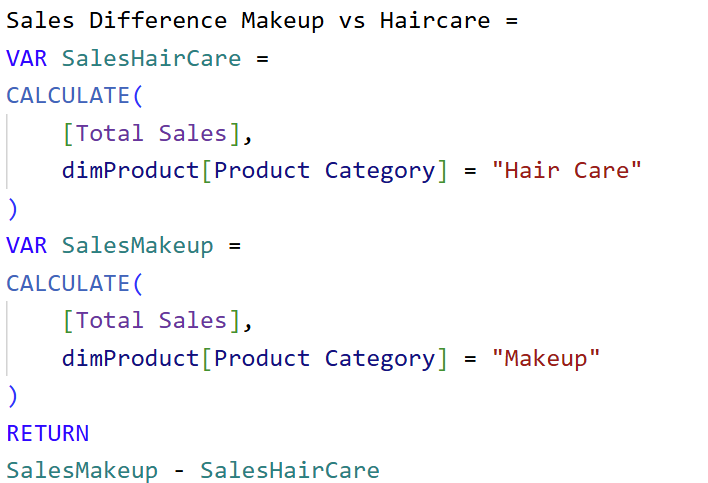
Why this is better:
- Easier to debug: you can return one variable at a time to test.
- More readable and maintainable.
Caution: Variables are constant once defined - they don’t react to CALCULATE() afterward.

3. Row Context and Iterators
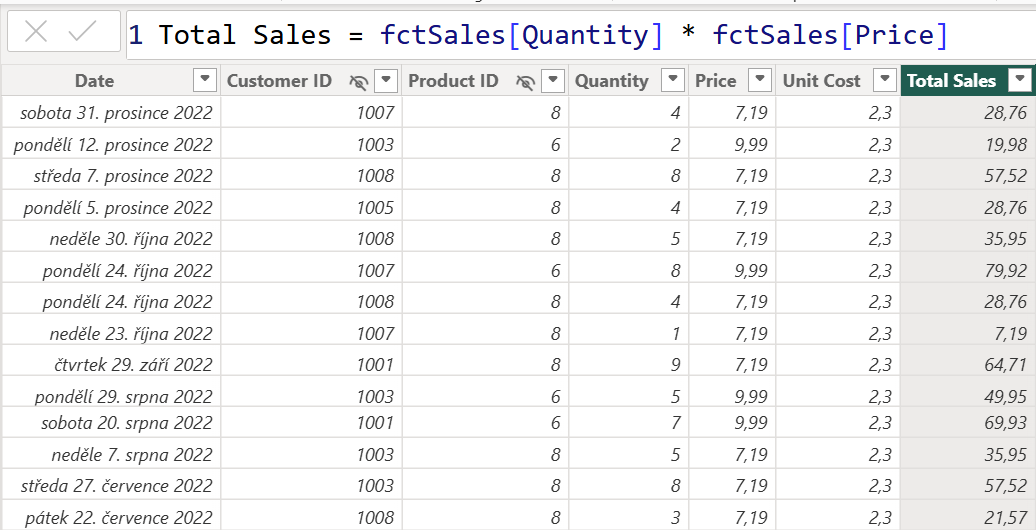
Row context occurs when DAX calculates values row-by-row, like in calculated columns.
Example using calculated column:
You can replicate this using a measure with an iterator like SUMX to evoke row context:
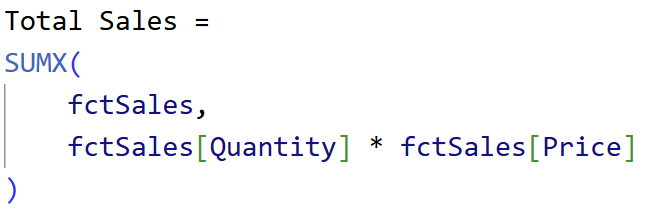
Why use SUMX?
- No need to create a physical column.
- Keeps your data model smaller.
4. Context Transition
When using a row context (e.g., in calculated columns), DAX doesn’t automatically filter other tables unless you use CALCULATE().
Example:
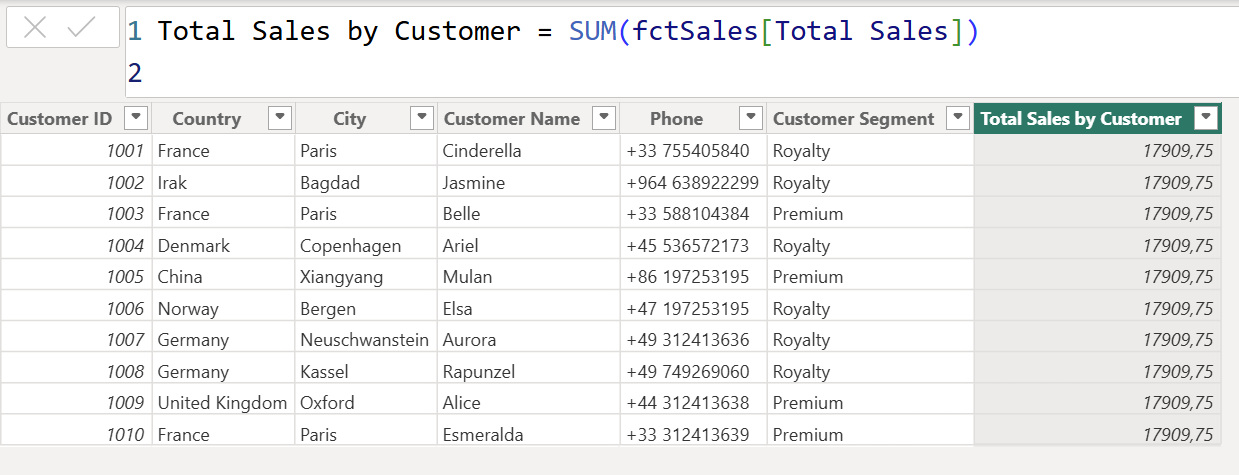
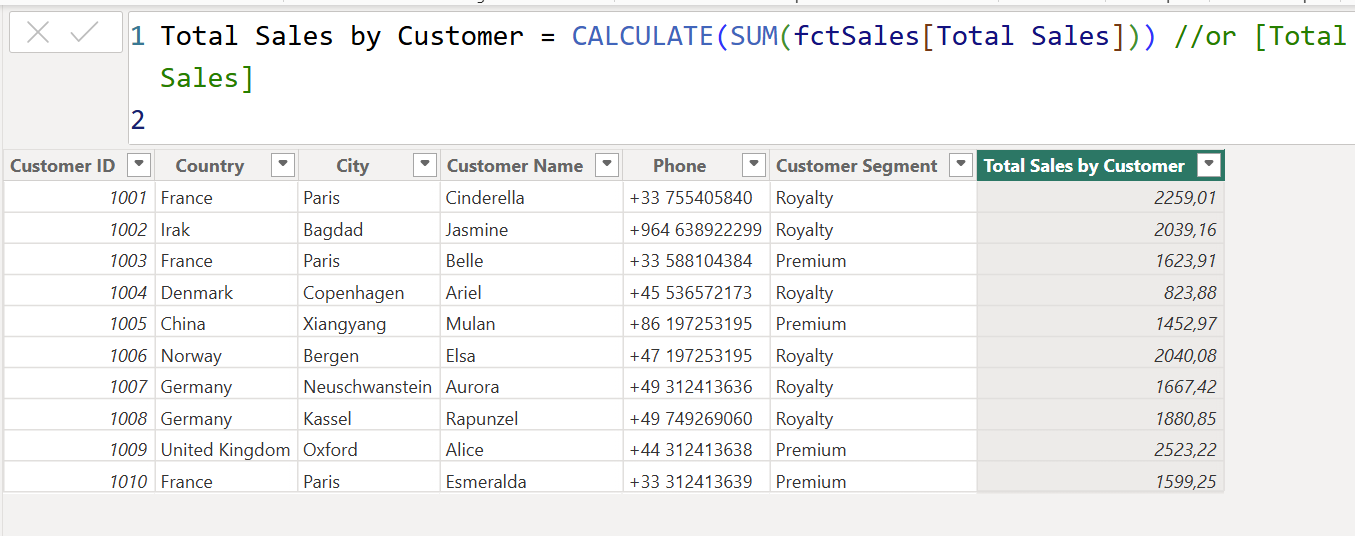
This forces context transition, turning row context into filter context.
Best practice: Use measures whenever possible, because Power BI wraps them in CALCULATE() by default.
Bonus: Average Sales per Customer
To calculate average total sales per customer, use:
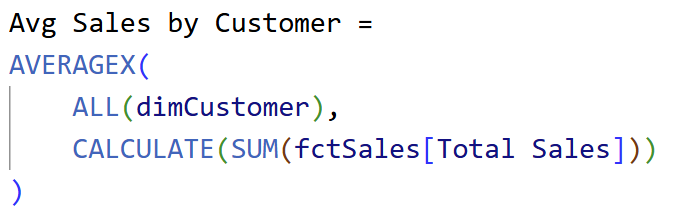
This:
- Removes the current filter context from the visual.
- Iterates through all customers, calculating sales per customer.
- Returns the average.
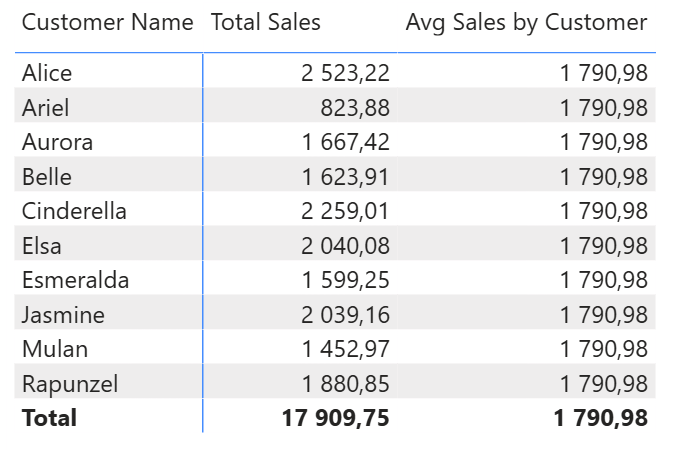
5. When to Use Calculated Columns vs. Measures
Use calculated columns when:
- You need a field for slicers, filters, or chart axes.
Example:
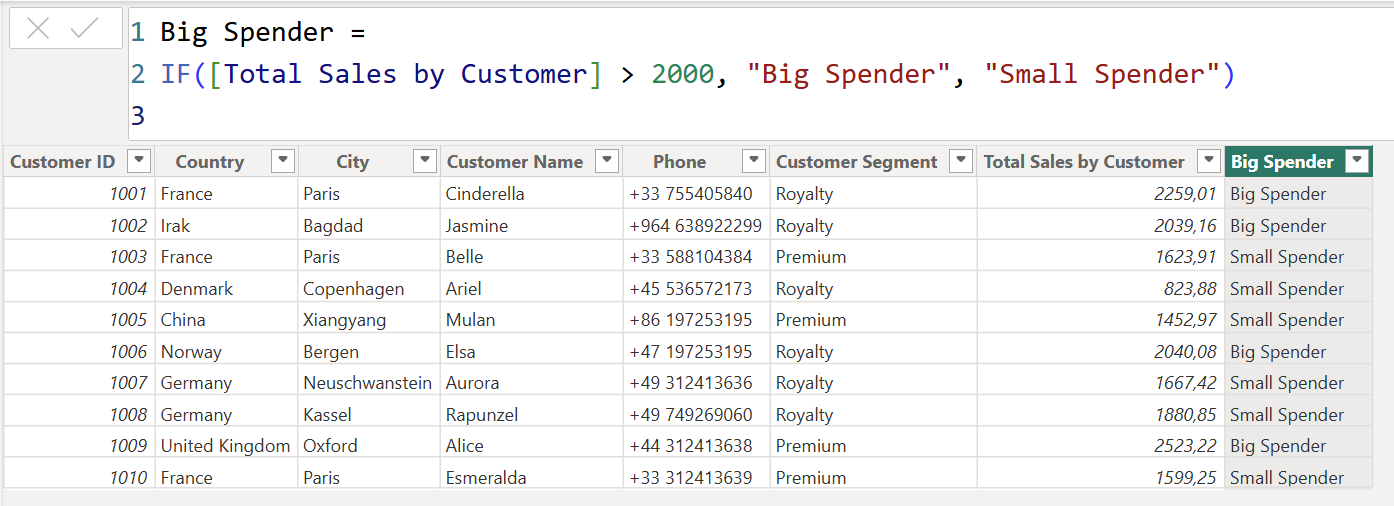
Use measures when:
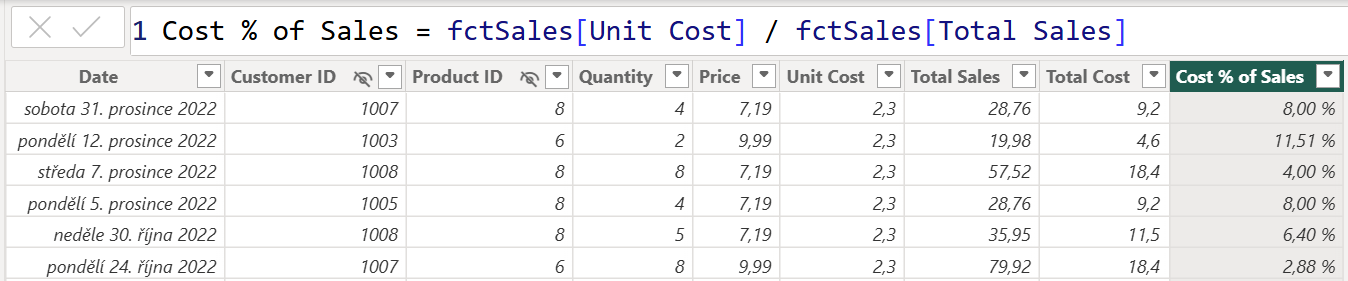
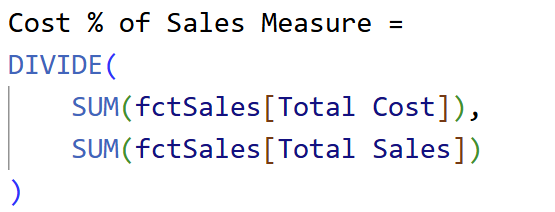
- You're calculating percentages, ratios, or aggregations that depend on the current filter context.
Incorrect approach using a column:
Correct approach using a measure:

Bonus: Percent of Total
Let’s wrap it up with a classic DAX pattern: %
of total.

Next StepsOnce you understand these five key concepts:
- Filter context
- Variables
- Row context
- Context transition
- Measures vs. columns
...you’ll find writing DAX formulas much easier - and even enjoyable.
Hope you like it!
Give it a try and see how it works for you! I’d love to hear what you think or see how you use this trick in your own reports.