1. Implicit vs explicit measures
Drag a numeric column like Sales[SalesAmount] into a visual and Power BI sums it for you. That's an implicit measure. It works, and it's how most people start.
The problem shows up later. Every visual now has its own little calculation hidden in the field well. Someone switches one of them to Average, someone else formats one as currency and forgets the other four, and you end up with the same number shown three different ways across a report.
An explicit measure is one you write in DAX:
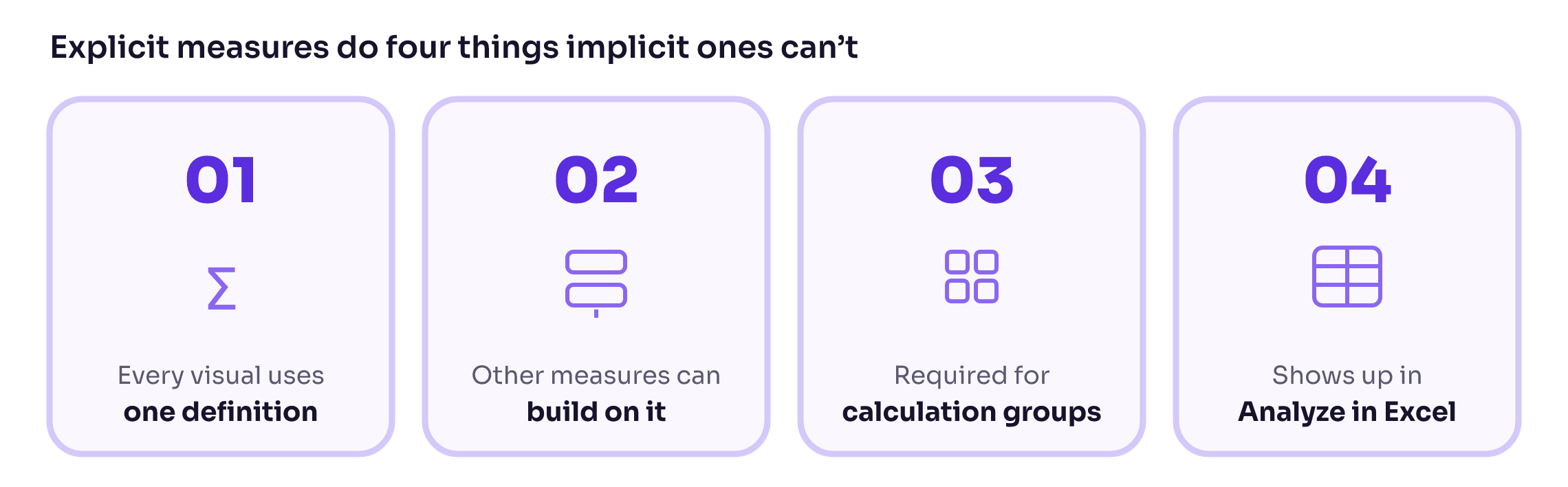
You define it once, set its format string and display folder once, and every visual uses that. You can also build on it, like Sales Amount LY does above. With implicit measures you can't reference the sum in another calculation at all.
Calculation groups also only work with explicit measures, and Power BI turns implicit measures off for the whole model as soon as you add one. Analyze in Excel also only shows measures, not summarized columns.
* TIPIn Model view, select the model and turn on Discourage implicit measures in the Properties pane. Then hide the raw numeric columns in your fact table so report builders only see the measures.
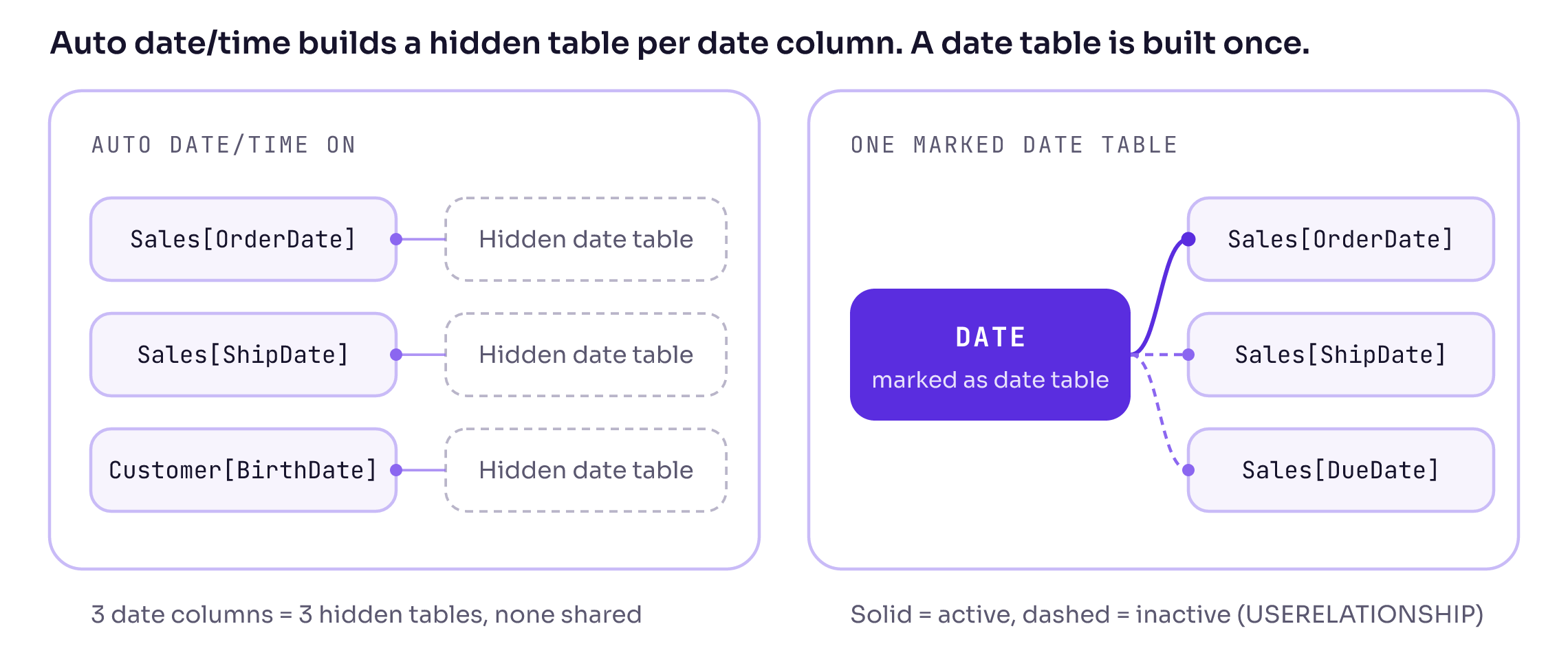
2. Date table vs Auto date/timeAuto date/time is on by default. For every date column in your model, Power BI creates a hidden date table with Year, Quarter, Month and Day. That's where the little date hierarchy in the field list comes from.
Ten date columns mean ten hidden tables, each one taking up memory. None of them are shared, so a slicer on order year won't filter anything by ship year. And time intelligence functions like SAMEPERIODLASTYEAR need a proper date table to work reliably.
Step 1: Turn it off
File > Options and settings > Options. Under Current File > Data Load, untick Auto date/time. Do the same under Global so new files start without it.
Step 2: Create one date table
Modeling > New table, then:
Set the start and end to cover full years of your data. The date column has to be continuous, with no gaps and no blanks.
Step 3: Mark it and relate it
Select the table, then Table tools > Mark as date table and pick the Date column. Relate DateTable[Date] to each date column in your fact table. Only one of those relationships can be active; the rest you switch on inside a measure with USERELATIONSHIP.
Watch this to
create it with DAX.
Watch this to
create it in PQ.
3. Star schema
A star schema splits your data into two kinds of tables. Fact tables hold the events you count and sum, like order lines, transactions or visits. They're long and narrow, mostly keys and numbers. Dimension tables hold the things you slice by: products, customers, dates, stores.
The fact sits in the middle, the dimensions sit around it, and each dimension connects to the fact with a one-to-many relationship.
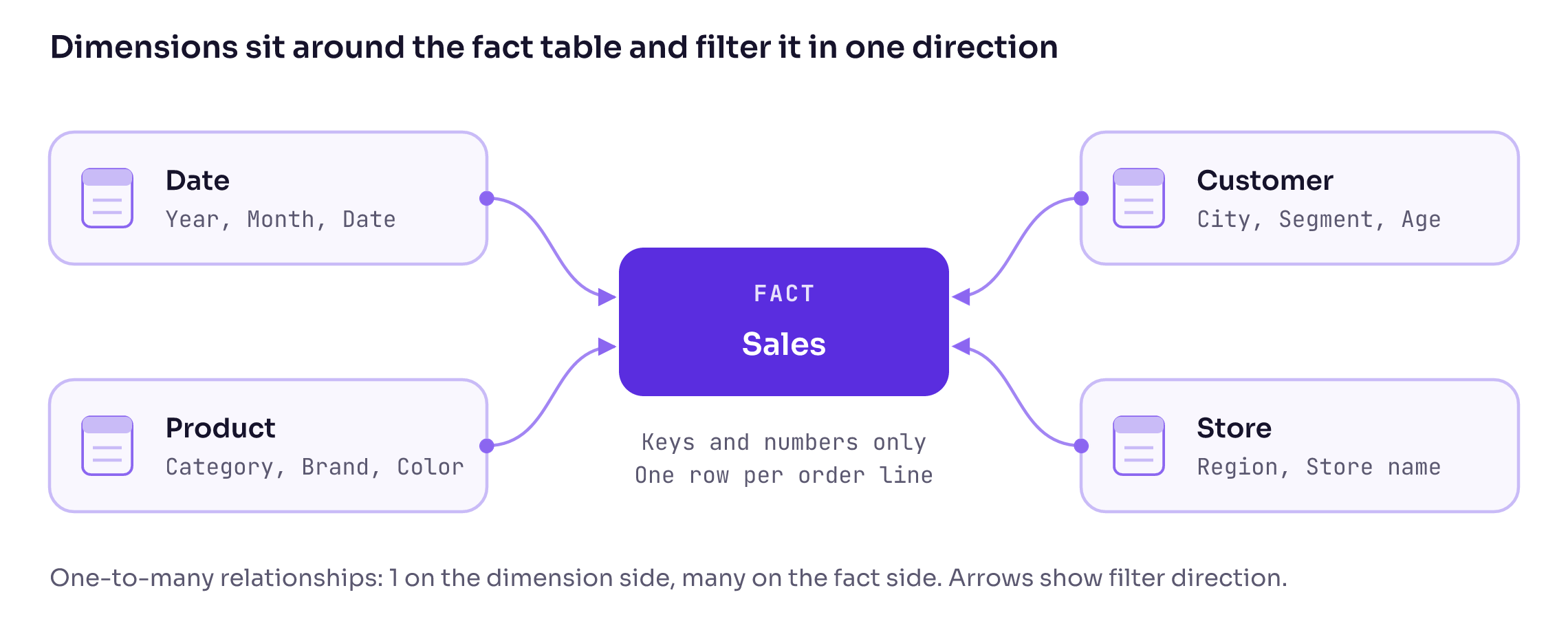
Filters flow from the dimension (the one side) to the fact (the many side). Pick a product category in a slicer, Power BI filters Product, and that filter travels down the relationship to Sales. Keep every relationship single direction and the behavior stays predictable.
When I see a model that isn't a star, it's usually one of these:
• One big flat table. Everything from an Excel export in a single table. It works for a while, then the file gets slow and every measure needs an ALL or a REMOVEFILTERS to behave.
• Bi-directional relationships everywhere. Usually added to make one slicer filter another. It fixes that one visual and creates ambiguous paths that give you wrong totals somewhere else.
• Dimensions joined to dimensions. Product, Subcategory and Category as three separate tables (a snowflake). Merge them into one Product table in Power Query instead.
4. Row context vs filter context
Every piece of DAX runs in a context, and most "why is this number wrong" questions come down to not knowing which one.
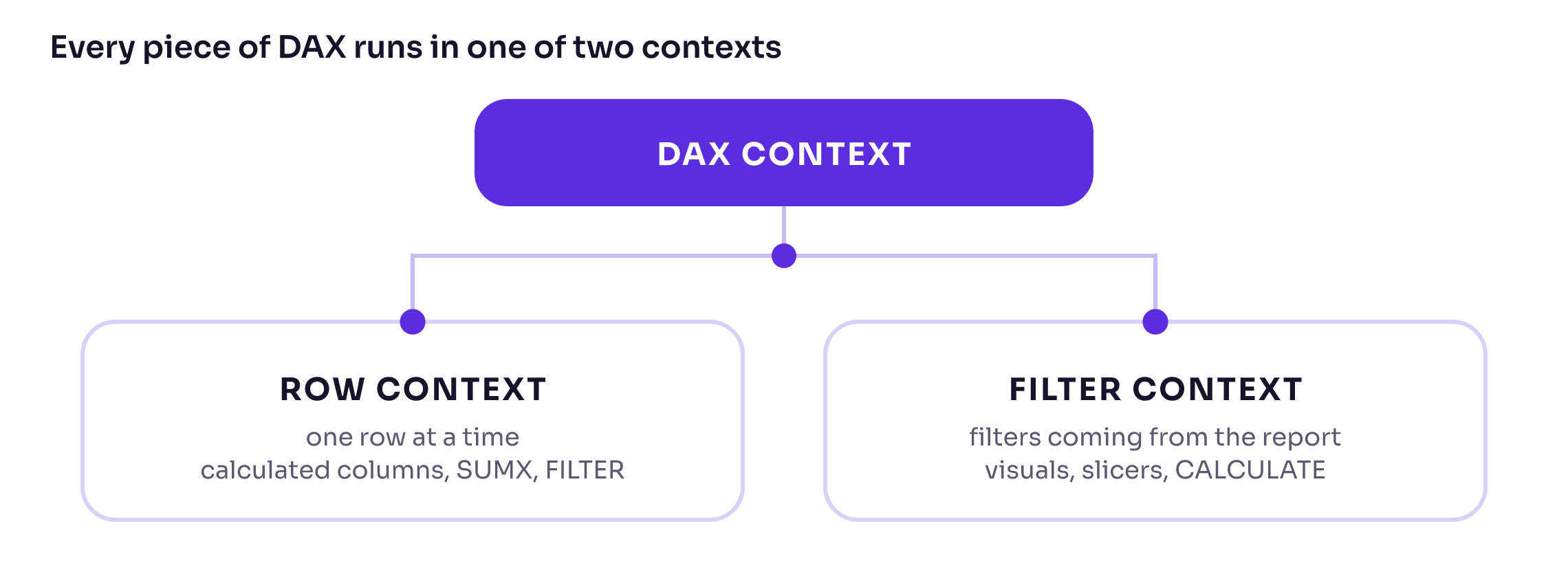
Row context means DAX is looking at one row at a time. You get it in calculated columns and inside iterators like SUMX and FILTER. In a calculated column on Sales, this works because there is a current row to read from:
Filter context is the set of filters coming from the report: the row and column of a matrix, slicers, page and report filters, and anything CALCULATE adds. Measures run in filter context: they see only the rows that survive those filters, then aggregate them. CALCULATE lets a measure change that filter context itself:
What CALCULATE changesRow context does not filter anything on its own.
CALCULATE turns the current row into a filter. This is called context transition, and it's what lets a calculation on one row see only the data for that row.
The same thing happens silently when you reference a measure inside an iterator, because every measure has an invisible CALCULATE around it. That's why SUMX ( Product, [Total Sales] ) gives you sales per product and then adds them up.
5. Organizational themes (JSON)
A theme file is a JSON file that sets your colors, fonts and default visual formatting in one place. Load it once and every new visual picks it up, so nobody has to remember the brand hex codes or reformat titles by hand.
Here's a small one you can start from:
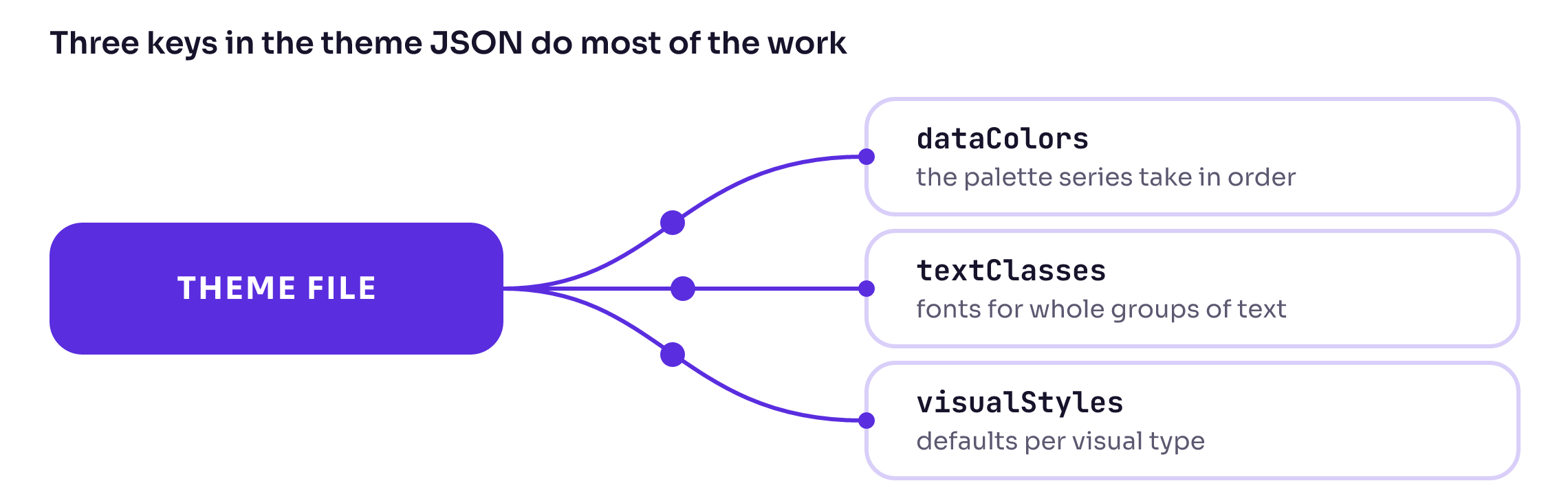
dataColors is the palette series take in order.
textClasses sets fonts for whole groups of text at once (title is visual titles, label is data labels and axis text).
visualStyles sets defaults per visual type, and "*" means all of them. Load it with View > Themes > Browse for themes.
If you want a custom brand font in there, read
Custom Fonts in Power BI first. Viewers who don't have the font installed see a fallback after you publish.
Sharing it with everyoneUntil recently the theme file lived on someone's laptop or a SharePoint folder, and half the team used an old version. Organizational themes put it in one central place instead. It's still a preview feature, and only tenant admins can set it up: they upload the JSON in the Fabric admin portal and enable it for the theme gallery (
Microsoft Learn).
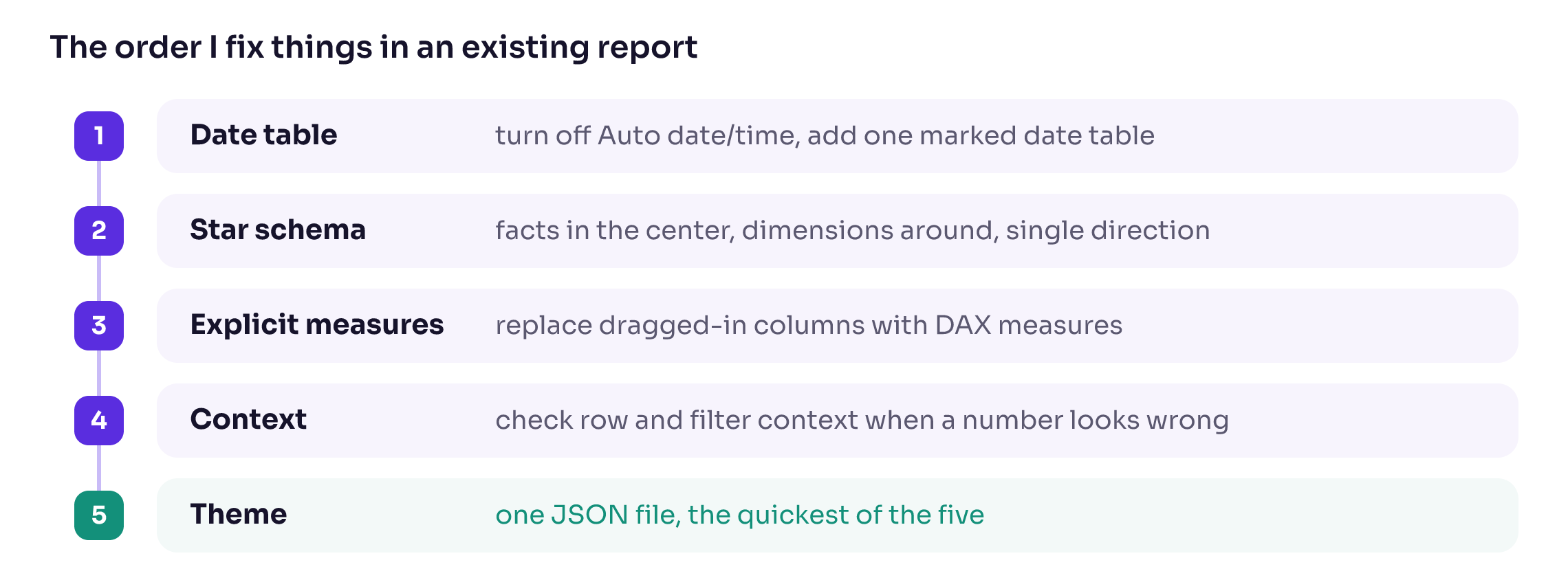
Where I'd start
Hope you like it!
Which of these five did you learn the hard way? I'd love to hear the story.