You install the brand font, write a theme JSON, load it into Power BI Desktop, and everything looks perfect. Then someone else opens the report and sees a completely different font. That happened to me. So this walkthrough has two halves: the setup, which takes about ten minutes, and the bullet points you need to be aware of before deciding to use a custom font.
The Full List of FontsAll 26 fonts, in the order the dropdown:
Arial
Arial Black
Arial Unicode MS
Calibri
Cambria
Cambria Math
Candara
Comic Sans MS
Consolas
Constantia
Corbel
Courier New
DIN
DIN Light
Georgia
Lucida Sans
Unicode
Segoe UI
Segoe UI Light
Segoe UI Semibold
Segoe UI Bold
Symbol
Tahoma
Times New Roman
Trebuchet MS
Verdana
Wingdings.
Two of those (Symbol & Wingdings) are glyph
sets.
Nobody uses them in visuals, so in reality it is 24 for labels, text boxes, slicer headers.
Step 1: Install the Font on Your MachineDownload your brand font and install it locally. Right-click the .ttf or .otf file and choose "Install for all users" if you have admin rights.
Power BI reads fonts from the operating system, so the font has to be sitting on the machine that renders the report. That one detail causes most of the trouble in Step 5. This is also one of the main cons for custom fonts in the first place.
Step 2: Export Your Current Theme
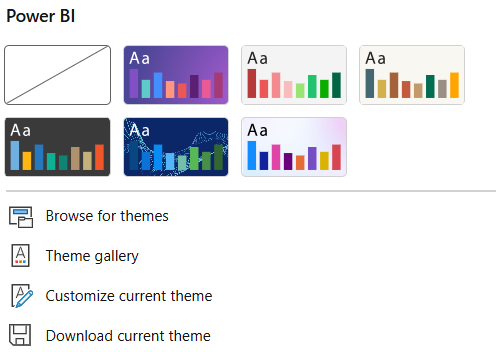
In Power BI Desktop, open View > Themes. You'll see Download current theme near the bottom, and on a fresh report it will be greyed out
Power BI won't export the Default theme, because Microsoft manages it as part of the product. The button only becomes available once the report has a custom theme applied. Two ways to get there:
-
Open Customize
current theme, give the theme a name or change any setting, hit Apply.
It's now a custom theme, and Download current theme is available.
- Or
pick any non-Default built-in theme from the gallery first. The
restriction is only on Default, so anything else would work.
Either way you end up with a JSON file that already contains
a palette.
Step 3: Add Your Font to The JSONOpen the file in VS Code or Notepad. There are two places you can set fonts, and they behave differently.
textClasses is the clean option. It sets the font for whole categories of text at once:
Watch the property name. Inside textClasses it's fontFace, not fontFamily. Get that wrong and the theme still loads without complaint, it just ignores your font.
Four classes cover most of the report. callout is card numbers, title is visual titles, header is table and matrix column headers, label is data labels and axis text.
Look at the commas in that font list. Power BI writes your font name straight into CSS, so you can hand it a fallback stack exactly like you would on the web. First available font wins, and any name with a space goes in single quotes. Without one, viewers who don't have your font can end up with Times New Roman (default fallback), so always end the stack with a built-in font.
visualStyles is the surgical version. Use it when a single visual needs something different. The property there is fontFamily:
Two things to keep in mind:
- The font name has to match exactly what Windows registered. Open Windows Settings > Fonts and copy it from there. "Roboto Semibold" and "Roboto SemiBold" are different strings, and Power BI will not tell you which one you got wrong. So always double check if it works/shows.
- If you type a name that doesn't exist, there's no error message. The theme loads, the report renders, and you get the fallback.
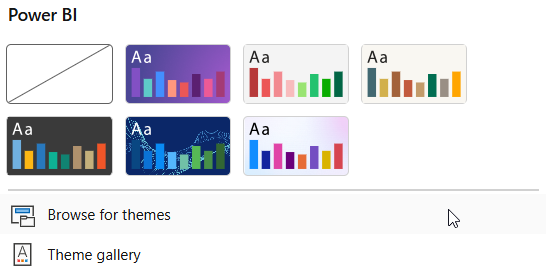
Step 4: Load the ThemeView > Themes > Browse for themes, pick your JSON, done. Titles, headers, labels and card numbers should all switch immediately.
If nothing changed, the font name is wrong. Go back to Step 3 and copy it from Windows Settings rather than from the font file name.
Step 5: Publish, Then Look At It on a Computer That Isn't YoursCustom fonts render only when the font is installed. I publish the same report and opened the same visual three times: on my own machine it showed Roboto, on a colleague's PC it didn't, and on my phone it didn't either.
Power BI gives you no warning about this. It just substitutes and moves on. Before you ship anything, open it once somewhere that doesn't have your font installed, check if fallback works correctly.
Step 6: Pick a strategy that makes sense- Always ship a fallback stack. It costs one comma in the theme file. You still don't get your brand font, but you get to decide what viewers see instead of Times New Roman (which can bring severe consequences to formatting and cause misalignment).
- Pick the closest safe font. Segoe UI, Tahoma, Verdana, Georgia, and Trebuchet MS are on every machine (default MS fonts), so everyone sees the same thing even if it isn't your brand font. This is what I'd recommend for anything shared widely, without a possibility to assure font is installed.
- Deploy the font to every viewer's machine. This works where IT manages the devices and can push fonts through Intune or Group Policy. In some companies every machine comes with full braded assets preinstalled. For external clients or public reports, it isn't realistic at all.
- Use paginated reports for anything printed. Report Builder embeds fonts into the PDF, so it comes out right.
* TIP
There's also the low-tech workaround: put the page title text in an
image background. It isn't elegant (or flexible), but for single report/page it bring the branding back and works on every machine.
One thing worth testing yourself
If your reports contains non-Latin text, check the safe fonts individually. Several of the 26 have incomplete glyph coverage, and a font that looks fine in English can drop letters entirely in Greek or Thai. Type a line of your own alphabet into a card and cycle through the dropdown.