01. Your company is already on Microsoft 365Copilot Code runs inside your Microsoft 365 environment and follows your organization's existing governance and compliance controls. It reaches company data through Microsoft Graph and uses the same tenant controls, identity and admin tools as the rest of Microsoft 365. So IT doesn't need to approve a new vendor, buy separate licenses or run a new security review.
A work Microsoft Entra account is the only sign-in you need. The Copilot license decides who gets Code, and usage goes on your existing Copilot billing. Admins can audit what Code does: the code it wrote, the commands it ran and the files it read or changed.
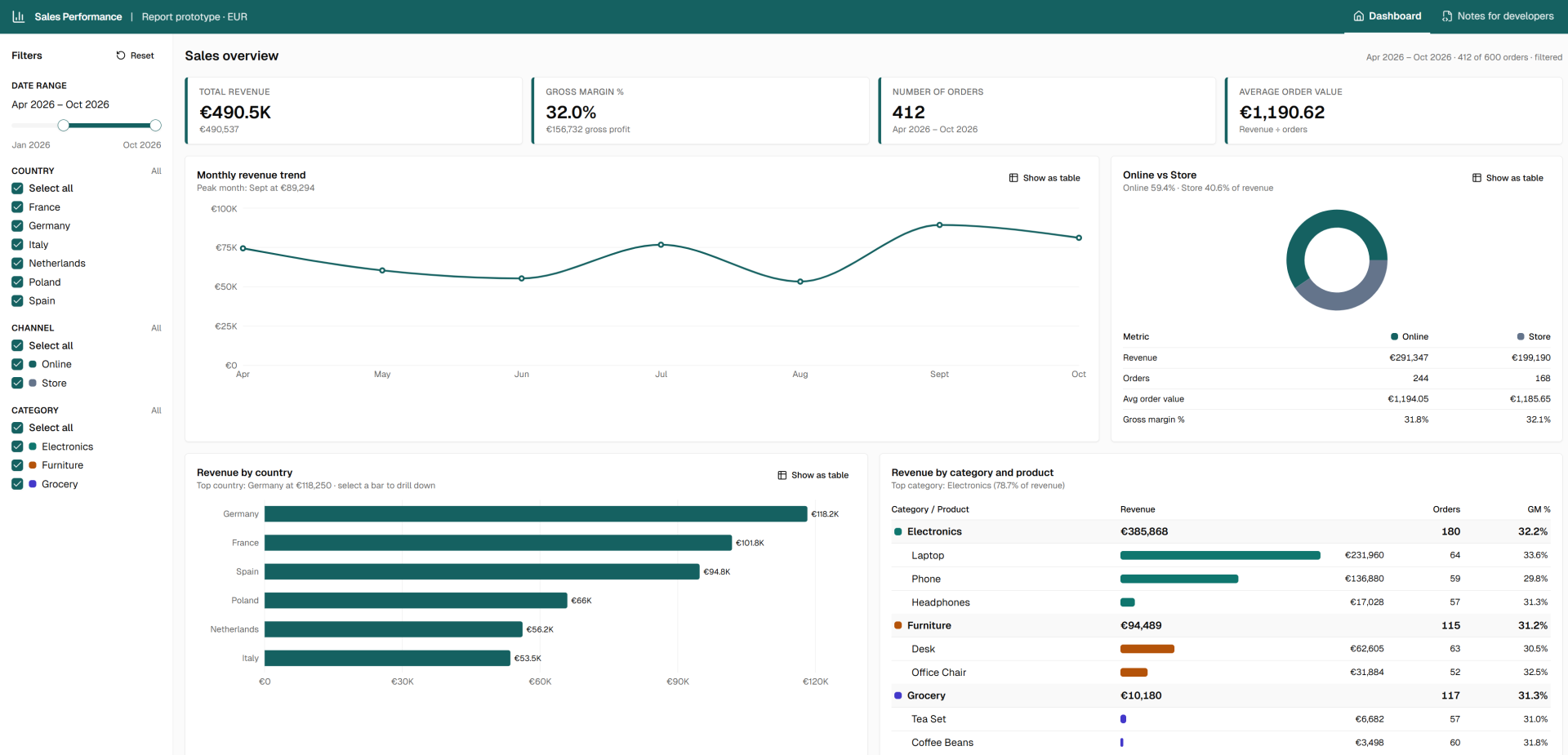
02. It's a fast way to prototype a reportCode is a good way to build a quick prototype of a Power BI report and show developers what you need. I uploaded a CSV with 600 sales orders and asked for a sales dashboard. The real report still gets built in Power BI, but now everyone agrees on what it should look like before that starts.
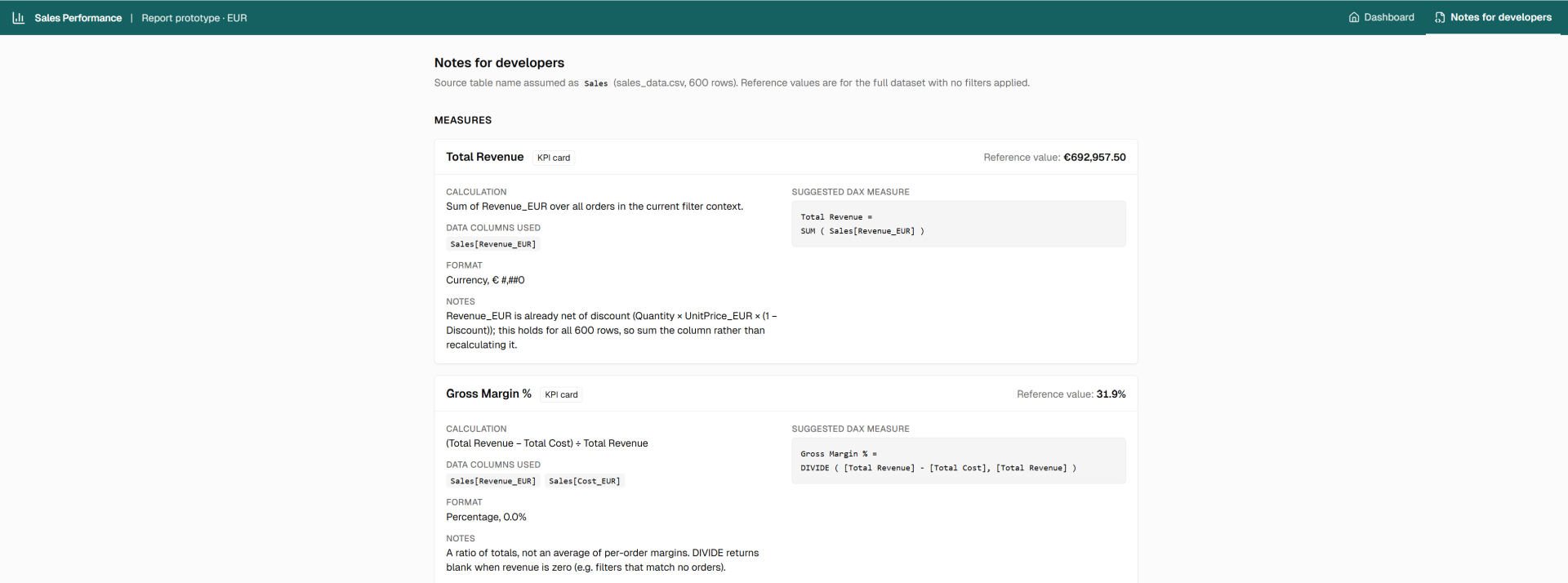
The prototype also has a Notes for developers tab that explains the business logic behind each number: how it's calculated, which columns it uses and which rules apply. For example, revenue is already net of discount, and gross margin is a ratio of totals, not an average of per-order margins. The developer gets these rules in writing, with a suggested DAX measure for each one.
03. Apps stay in your tenant, and sharing one works like sharing a document
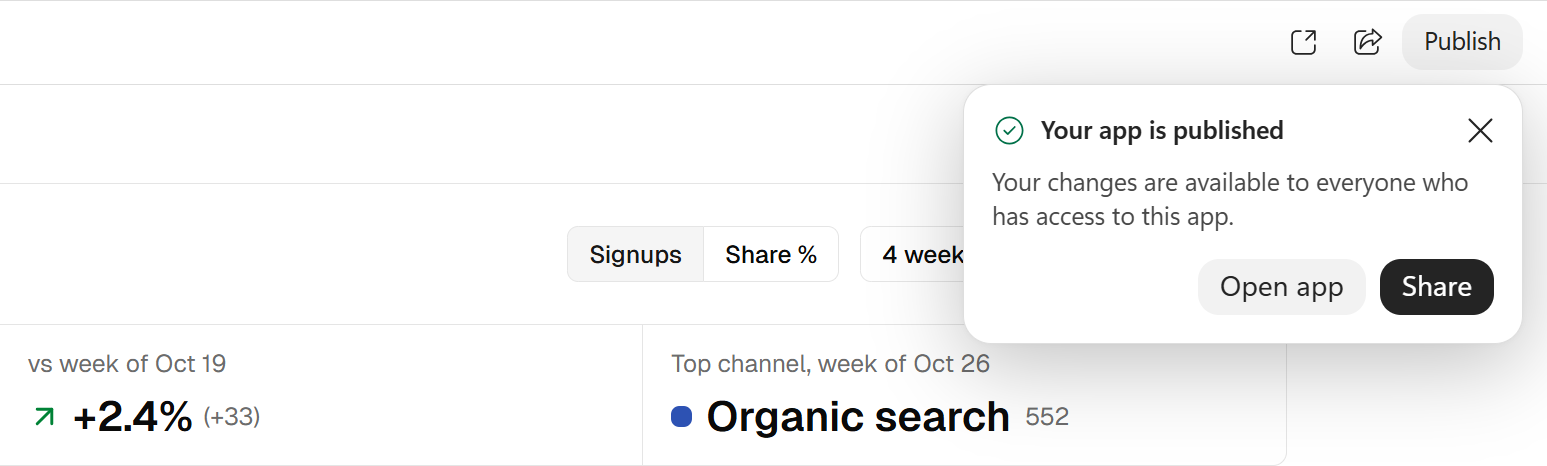
When the app is ready, you tell Code Publish it. The app runs on Copilot Managed Runtime, Microsoft's hosting inside your Microsoft 365 tenant, managed by IT. There's no separate server or deployment step.
Your project saves automatically, but a live version only appears when you ask to publish. Then you share the link with specific people or groups, the same way you'd share a Word file.
My favorite detail: sharing an app doesn't share its data. If the app reads from a SharePoint list, each person sees only what they already have access to, so the same dashboard can look different for two colleagues. Good to know before someone tells you it's empty on their screen.
04. It knows what your team is working on
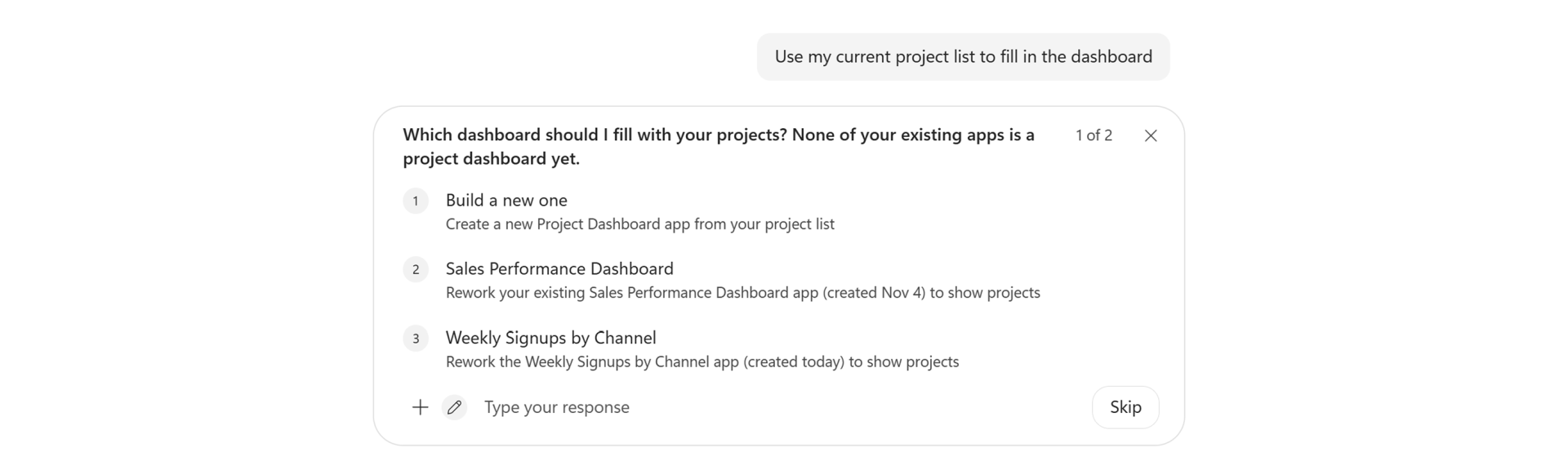
With your permission, Code uses your documents, emails, meetings and calendar as context. You can write "Use my current project list to fill in the dashboard" and it finds the list itself. For outside services it uses the same plugins you have in Cowork, so a connection you set up once works in both.
For admins: using organizational data is on by default for cloud sessions and off for local ones.
05. IT decides what's allowed
Turning on Code doesn't turn everything on. Admins manage individual features at the organization level in the Microsoft 365 admin center. According to the documentation, these are the defaults:
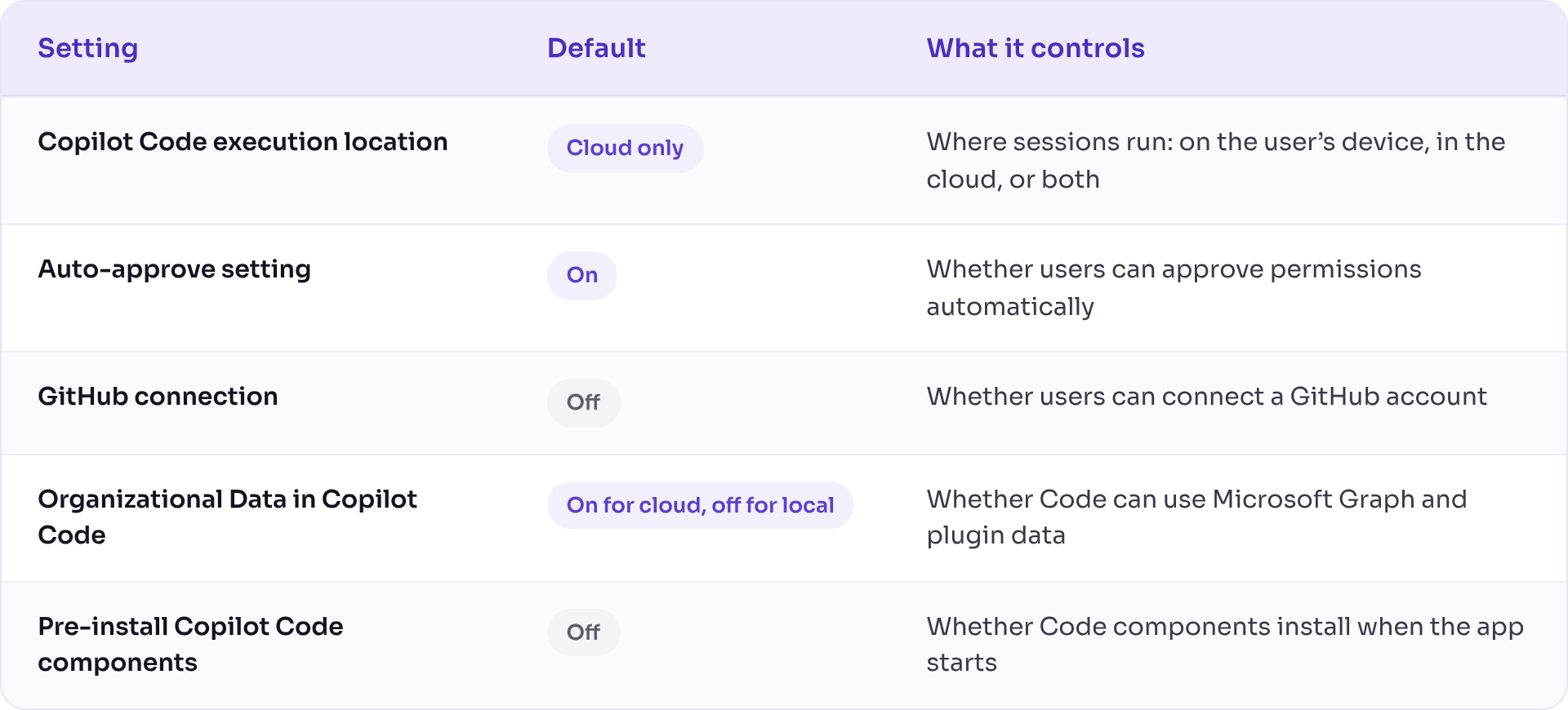
On top of that, admins can set a spend limit per user and restrict GitHub connections to accounts tied to your tenant.
There's protection at the user level too. Code asks for permission before it goes to the internet, uses MCP or an extension, runs a terminal command or touches a file outside the project folder. The weak spot is the "Always allow button": once someone turns it on, it stays on until they turn it off, and it covers existing sessions too. For a pilot, I'd switch Auto-approve off.
What to check before you turn it on- Code is a preview. You need to be in the Frontier program, features can change, and Microsoft hasn't given a general availability date. For now it works in the Copilot app on Windows and on the web (cloud only on the web). It isn't on mobile yet.
- Cost depends on usage, because Code spends Copilot Credits. An admin has to turn on Copilot Credit consumption and set a spending policy under Copilot > Cost management in the admin center.
- If a spending policy has Allow new Agents and services as they become available turned on, everyone it covers gets Code automatically. If you want to decide who gets it, check this setting before the rollout reaches you.
- AI-written logic needs checking. A nice-looking dashboard with a wrong formula can't be used for decisions, so check the numbers by hand once before anyone relies on them.
Hope this helps, more content on this topic coming up!