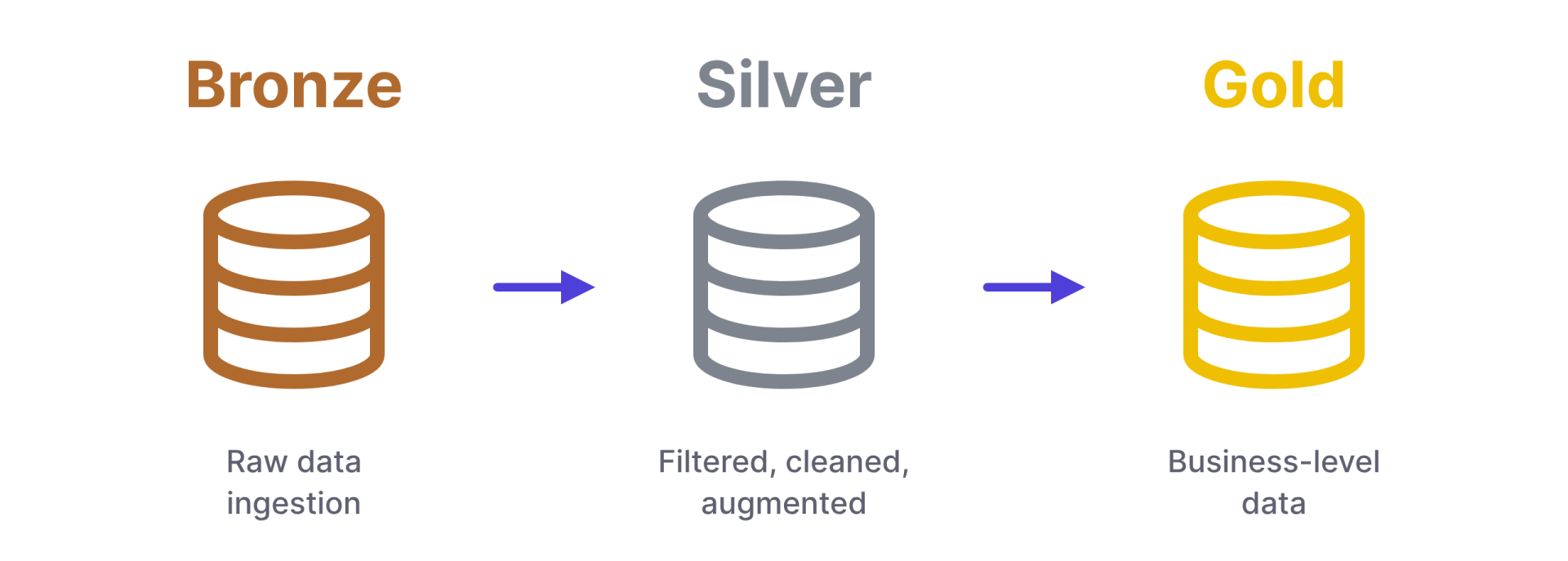
What goes in each layerBronze is the landing zone for source data. Data goes in exactly as the source sent it and nobody touches it afterwards. If the source is in OneLake, ADLS Gen2, Amazon S3 or Google Cloud Storage, use a shortcut instead of a copy.
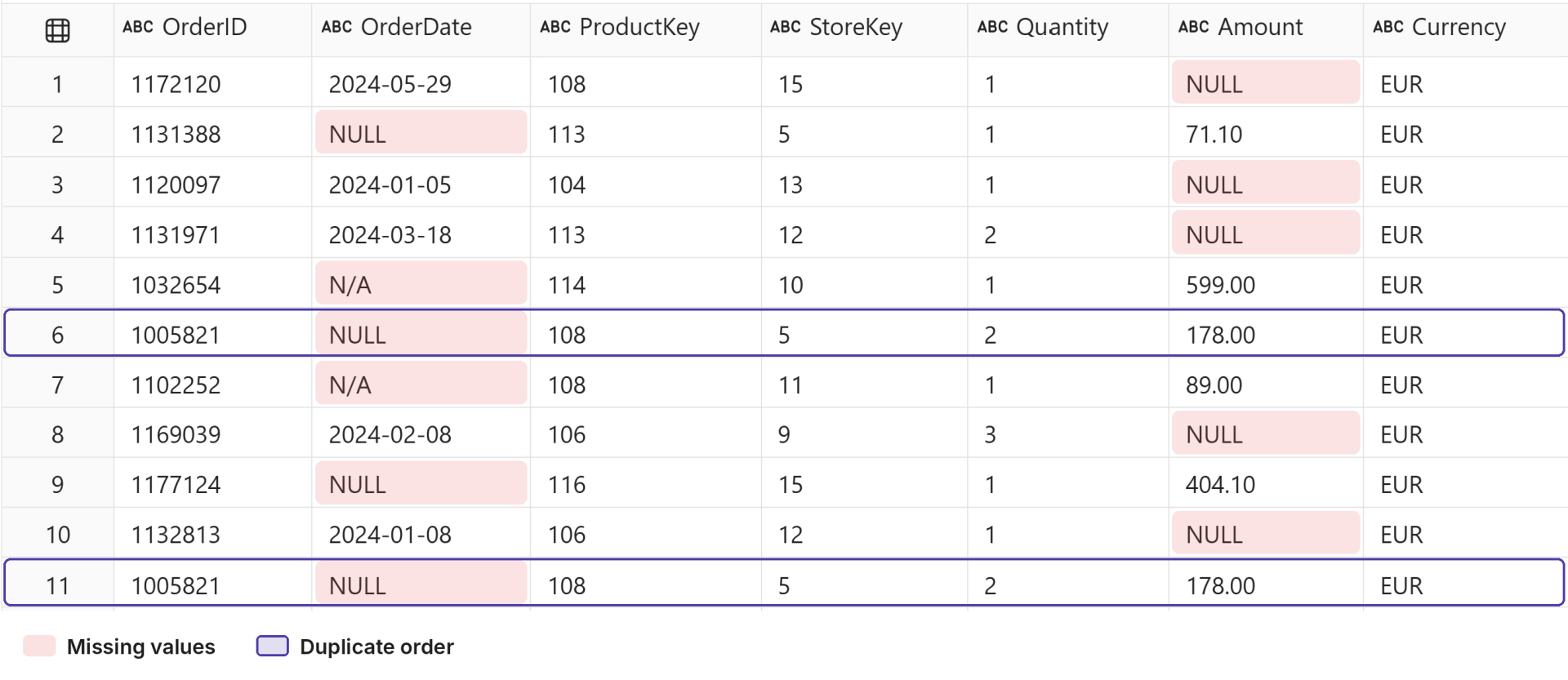
Every column is text, some dates and amounts are missing, and order 1005821 appears twice.
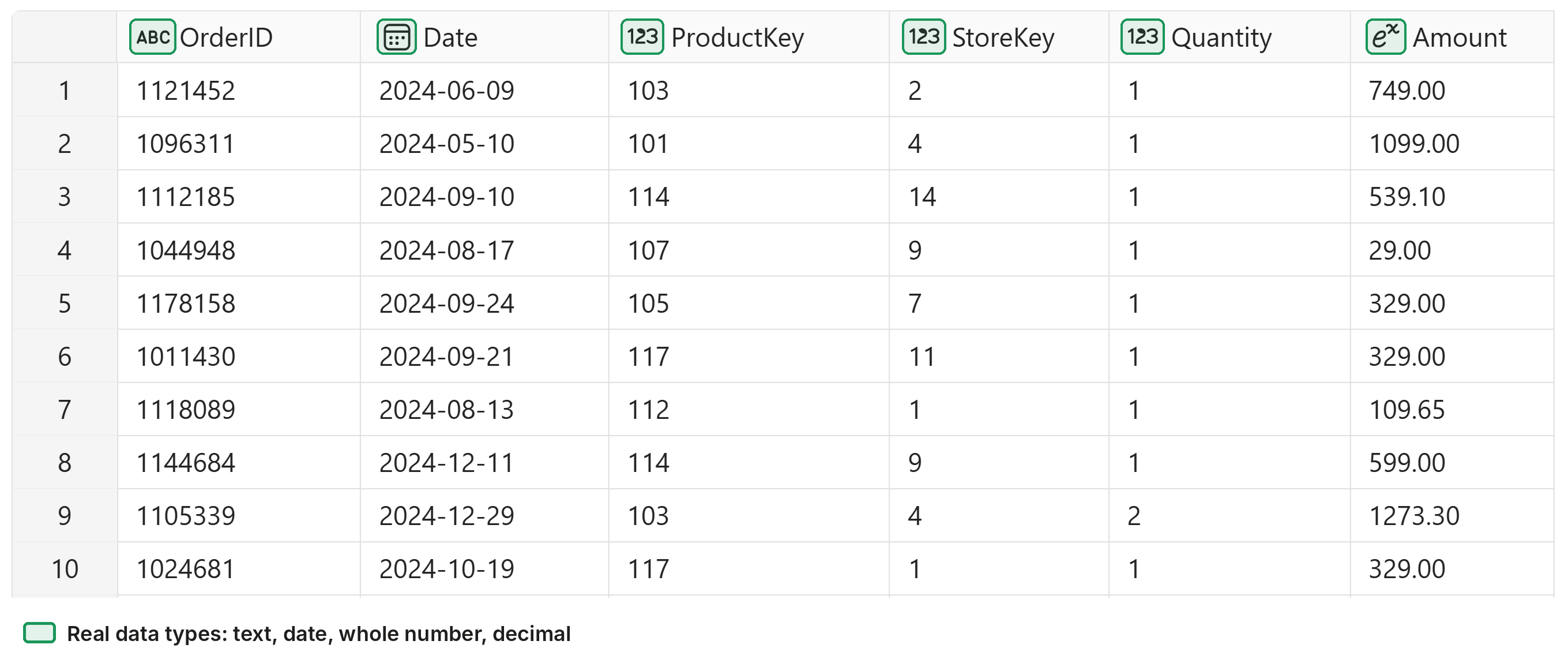
Silver is where you fix things: set data types, remove bad and duplicate rows, and standardise values like dates and currencies.
After silver, every column has a proper type and the bad rows are gone.
Gold is shaped for reporting, usually as facts and dimensions.

Step 1: Pick a lakehouse or a warehouse for gold
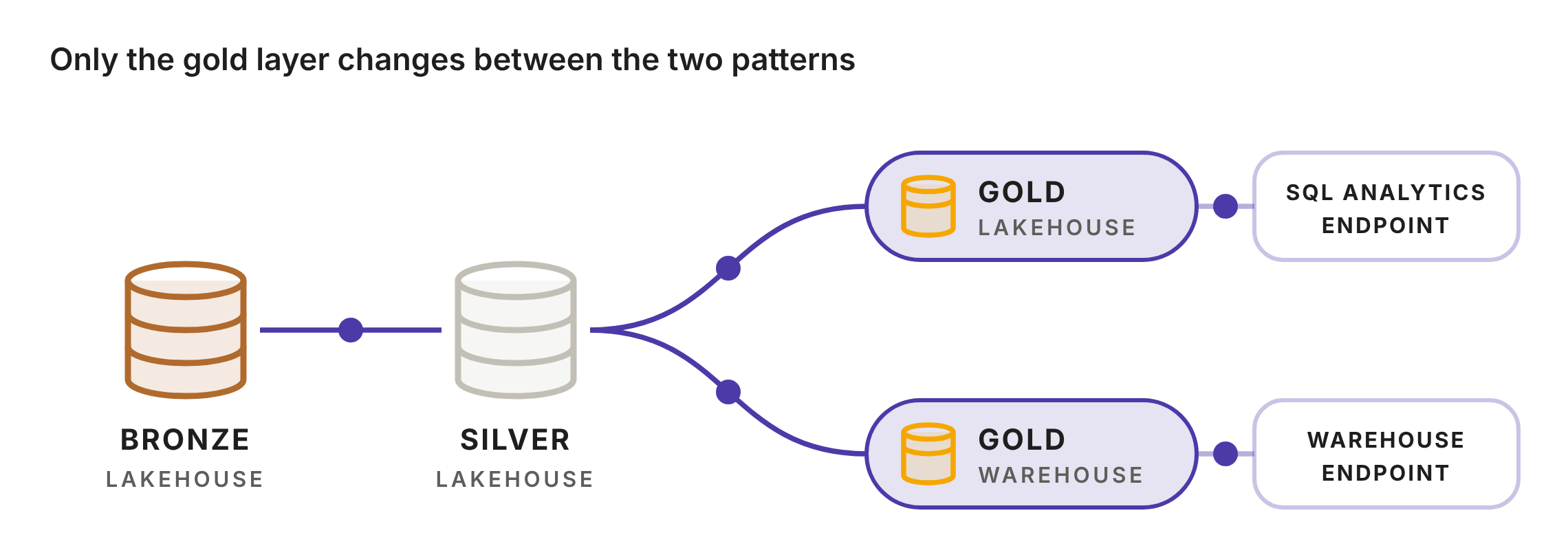
Microsoft documents two patterns. In the first, every layer is a lakehouse and business users query gold through the SQL analytics endpoint. In the second, bronze and silver are lakehouses and gold is a Fabric warehouse, so users query it through the warehouse endpoint.
Step 2: Decide how many workspaces you need
Microsoft recommends one lakehouse per layer, each in its own workspace, so you can set permissions per layer.
That adds overhead: more items to manage and three sets of deployment pipelines. One workspace with three lakehouses is lighter, but loses per-layer workspace permissions.
Materialized lake views (Step 4) can't currently track lineage or run across lakehouses.
Step 3: Turn on schemas when you create the lakehouse
Tick the schemas checkbox when you create a lakehouse. Materialized lake views need it, plus Fabric Runtime 1.3 or later.
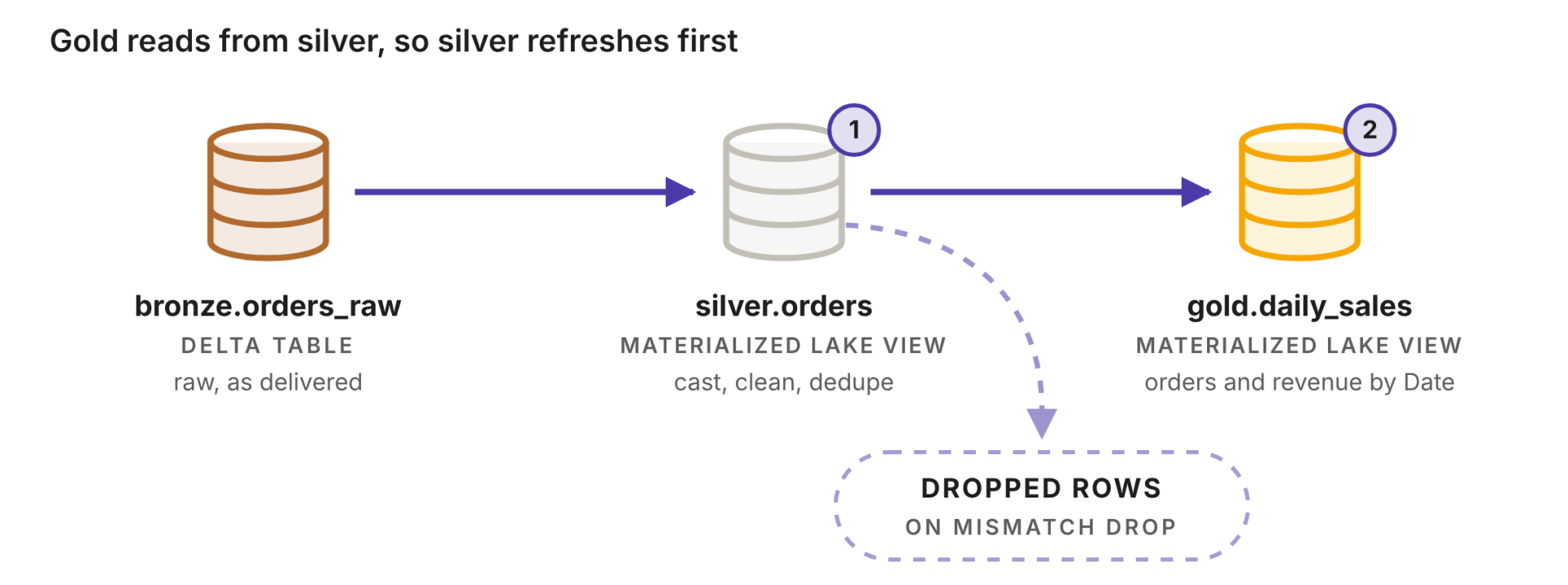
With one lakehouse, create bronze, silver and gold schemas so table names show the layer: bronze.orders_raw, silver.orders, gold.daily_sales.
Step 4: Build silver and gold with materialized lake views
Materialized lake views (MLVs), generally available since March 2026, replace most transformation notebooks and pipelines. You write a SELECT, Fabric stores the result as a table in the lakehouse, works out the dependency order between views, and decides on each refresh whether to do an incremental run, a full one, or skip it.
A silver view that cleans raw orders looks like this:
And a gold view on top of it:
Because gold.daily_sales reads from silver.orders, Fabric refreshes silver first. The lineage graph, refresh history and data quality numbers are under Materialized lake views > Manage in the lakehouse.
Step 5: Adjust the tables differently per layerAim for files between 128 MB and 1 GB. Small files are fine in bronze. Gold needs the larger files and row groups, because Power BI and the SQL endpoint read it.
For layout, skip folder partitioning in silver and gold and use Liquid Clustering. Microsoft now discourages partitioning for new bronze tables as well.
Delta keeps every version of a table, so run VACUUM on a schedule. By default you can't vacuum anything newer than seven days; the delta.deletedFileRetentionDuration table property changes that window.
Step 6: Point Power BI at gold
Build semantic models on gold tables in Direct Lake mode, so the business logic stays in one place.
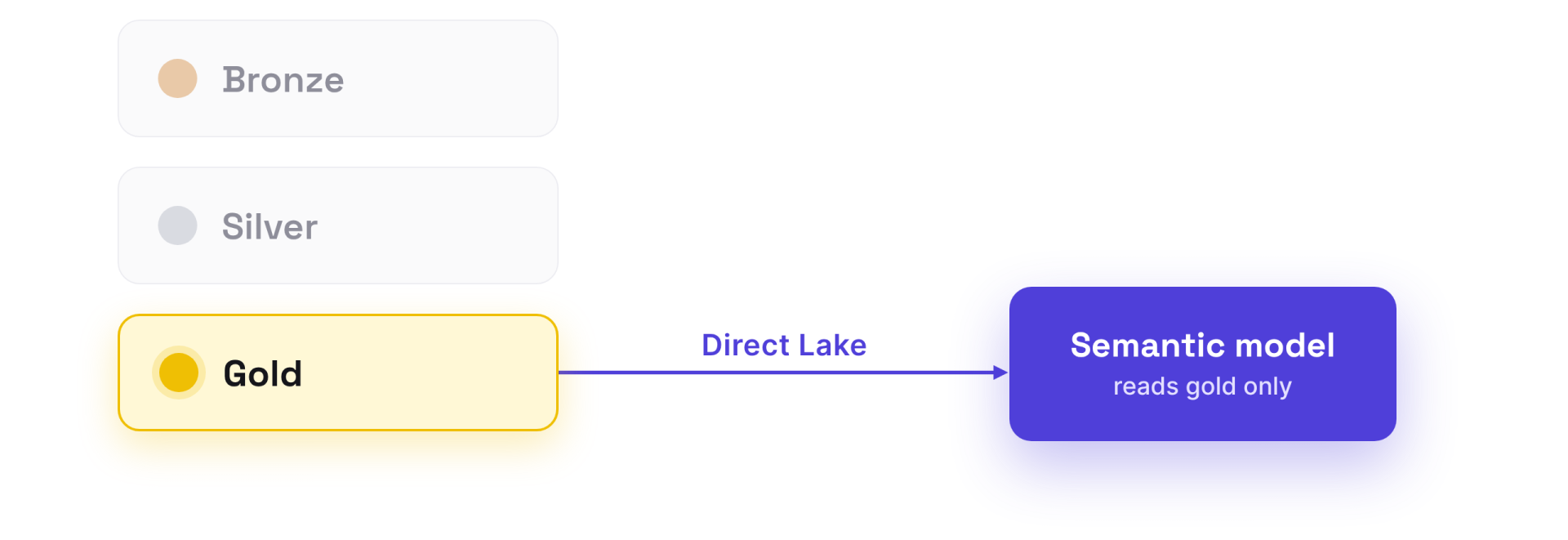
If a report needs a silver column, add it to gold instead of connecting to silver.
Hope this helps :)