What changed in the October 2026 release
According to Microsoft's feature summary, the list slicer got a dropdown mode (preview) built for long lists. In short:
- The drawer has its own width and height, keeps the formatting you gave the list items, and comes with a search box you can style (background, border, text).
- Pills show each selected value outside the dropdown, with a cross to remove it in one click. When they don't fit, a count pill tells you how many more are selected.
- Not (item) pills appear when you start from Select all and clear values, so the slicer shows what's excluded. Select all with nothing cleared doesn't filter anything.
- Show selected first pins your selections to the top of the list. The button slicer has this option too.
You can watch me test each of these in my video on the new dropdown slicer.
Step 1: Add a list slicer and switch it to dropdown
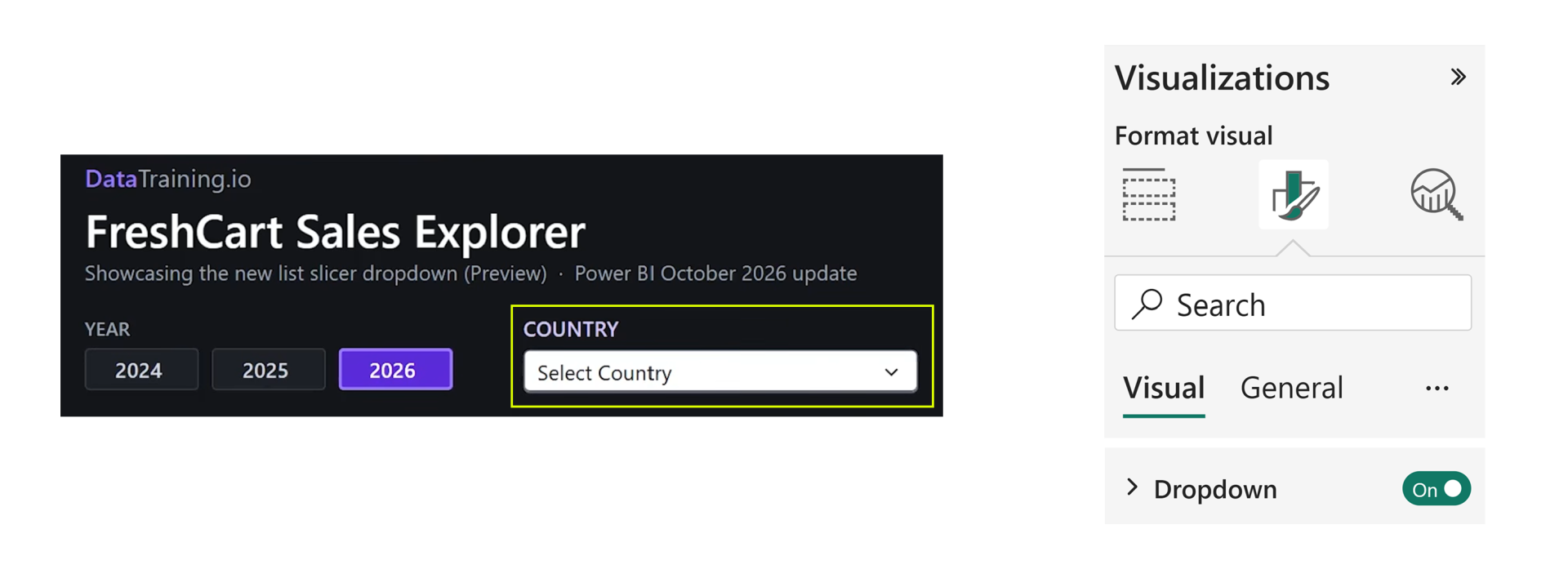
The dropdown lives inside the new list slicer, which is still a preview visual. Add the list slicer to the page and drop your field on it. I'm using Country. At this point you get a normal list. In the Format pane there is now a Dropdown toggle. Switch it on and the list collapses into a dropdown.
Step 2: Put an image next to each item
This is the part I like most. I wanted each country's flag in front of its name.
In the Format pane, open Image, keep the settings applied to all states and choose Select from data. Power BI now asks for a column or measure that returns an image URL for each item. I already had a measure called Image Flag, so I dragged it onto that field.
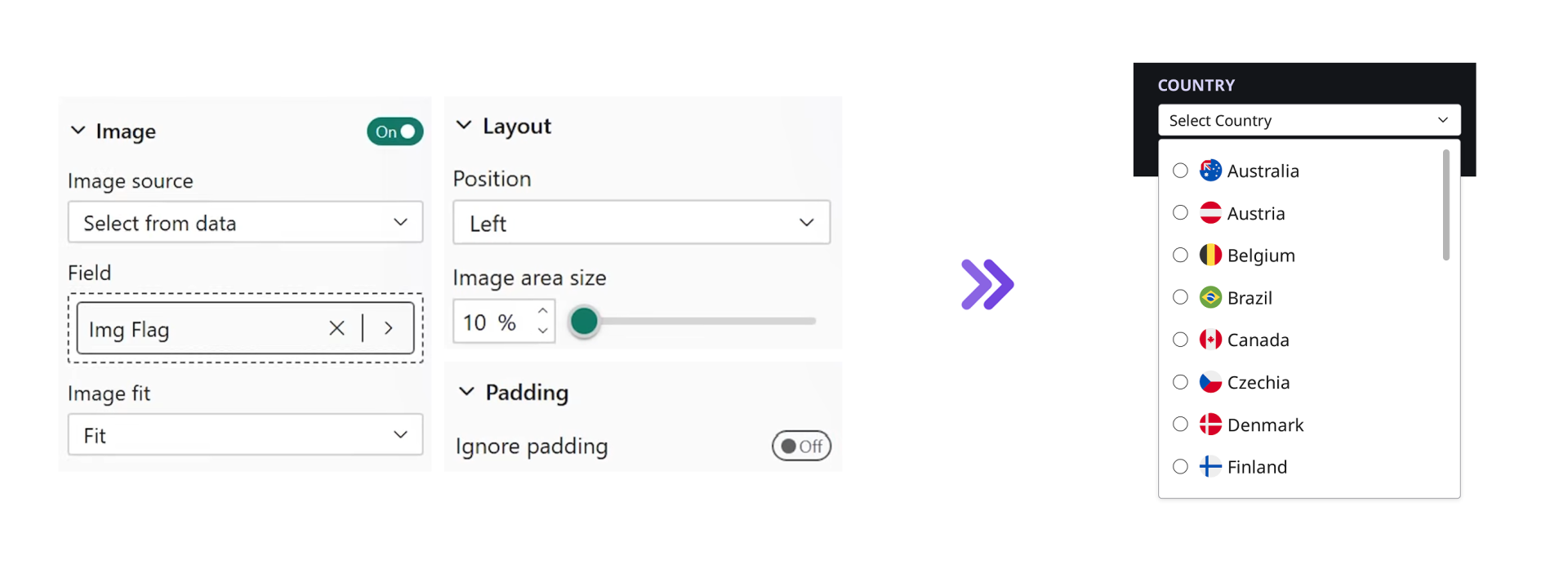
The first result looks a bit off, because the images aren't sized yet. These settings fix it:
• Image > Image fit: set it to Fit.
• Layout > Position: keep it on Left, so the flag sits before the name.
• Layout > Image area size: 10% worked well for me.
• Padding > Ignore padding: turn it off.
If the flag sits too close to the name, increase the Gap a little.
One thing to watch: the images load from that URL every time someone opens the slicer. If the host is blocked on your company network, viewers get empty boxes instead of flags. Open the published report on a colleague's machine once before you ship it. If the flags still don't show in Desktop, check that the measure's data category is set to Image URL.
Custom dropdown size
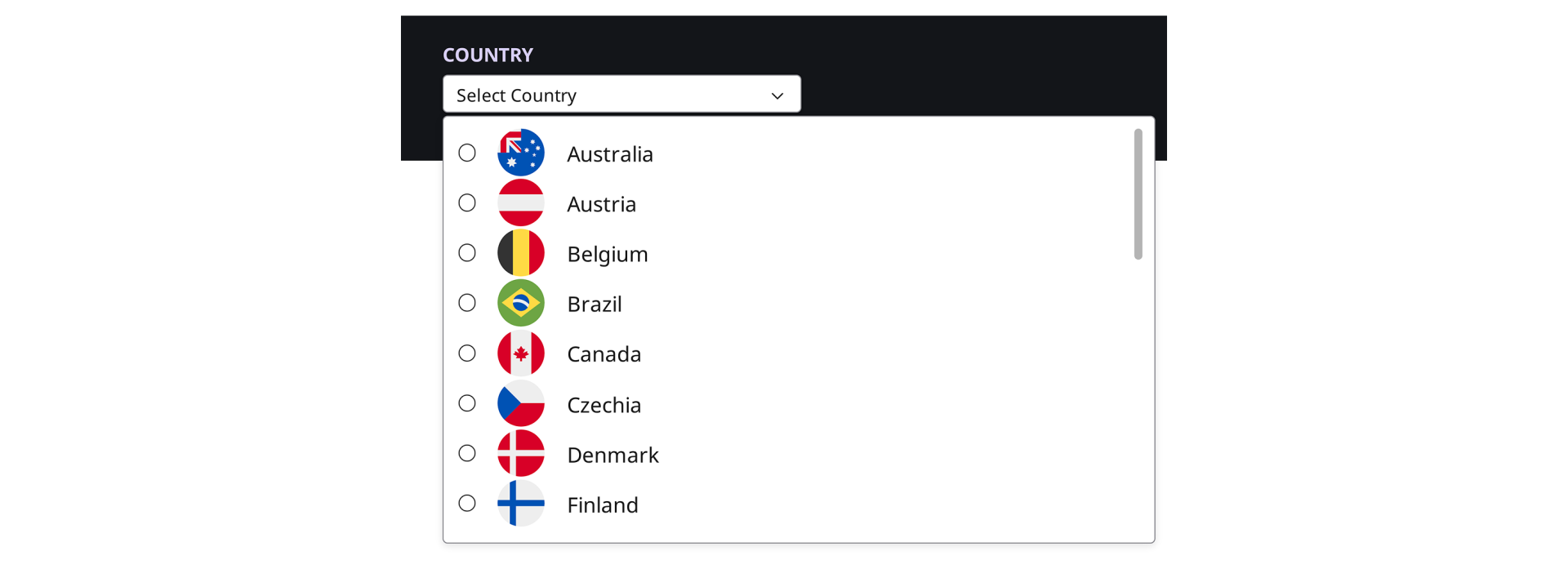
The drawer that opens below the slicer now has its own size settings. Shape and padding were always there, but under Size you can set the drawer's width separately from the input box.
I set the width to 500 while the slicer itself stays at 300. Open it and the list is much wider than the box above it. That's handy when the slicer has to sit in a narrow column but the item names are long. You can change the height of the drawer the same way, so a long list doesn't run off the bottom of the page.
Selection pills
This is the change I've wanted for years. With the old dropdown, picking more than one value just gave you "Multiple selections", and you had to open it to find out what was actually filtered.
Now every selected value shows up as a small label, called a pill, right in the slicer. To try it, go to Slicer settings and turn off Single select. Then pick a few countries. I chose Belgium and Canada, and when the next one no longer fit, the slicer showed +1. Pick another and it becomes +2. Make the slicer wider and more pills appear.
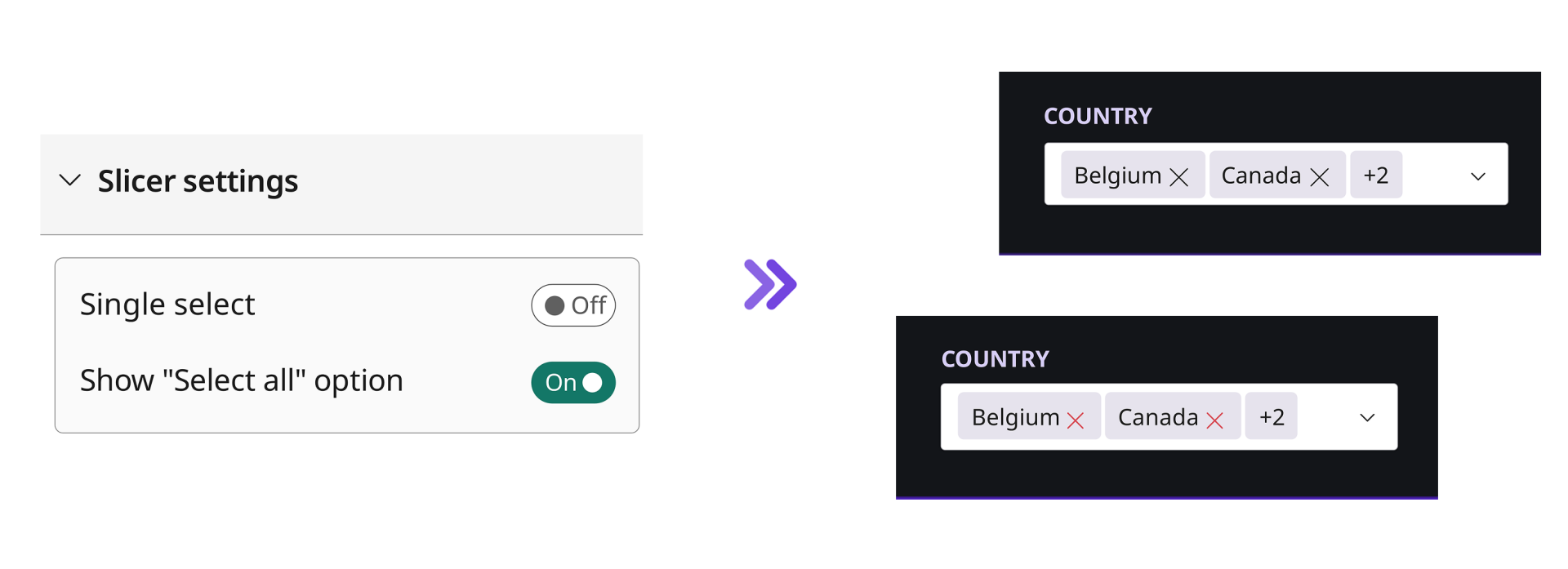
Each pill has a small cross, so a report user can remove a value with one click.
The pills have their own formatting section too. I wanted the cross in red, so I went to Selection pills > Dismiss button and changed the color. In the same section you can set the shape, padding, text, border and background of the pills.
There's also a small layout quirk. The cross in each pill sits slightly lower than the text. If you care about pixel-perfect spacing, check it before you show it to anyone picky.
Select all and Not pills
Sometimes it's easier to say what you don't want. Clear the selection, go to Slicer settings and turn on the Select all option.
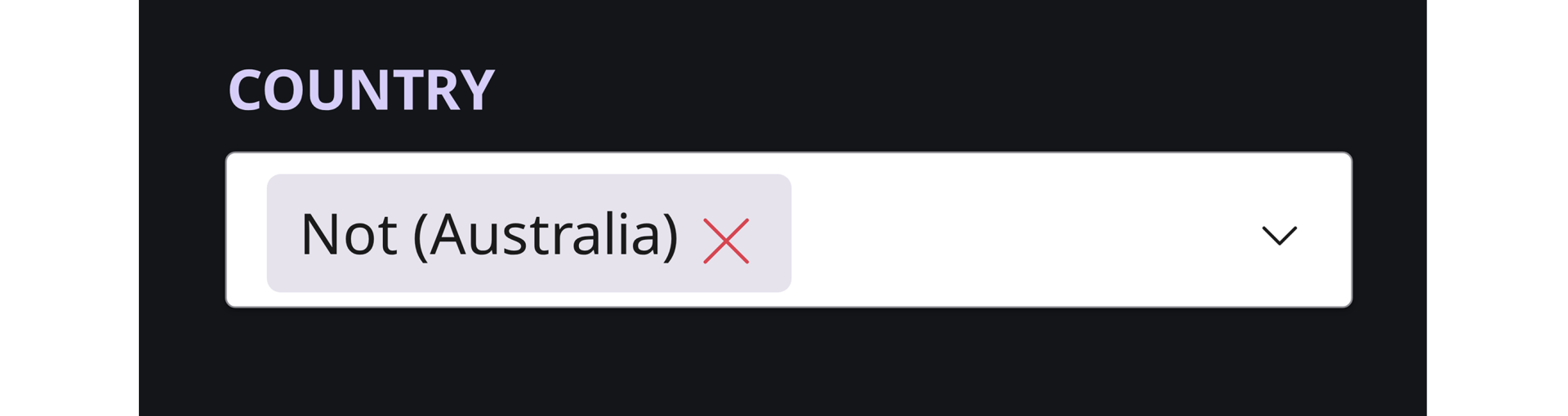
Now click Select all and start removing countries. When I removed Australia, the pill changed to Not (Australia). The slicer shows what is excluded instead of listing every country that's still in, which is much easier to read.
Change the checkbox position
One more layout option while you're in there. If the checkboxes on the left of each item feel too busy next to the flags, you can move them. Go to Selection icon > Layout and change the position from left to right.

Show selected firstIn a long list it gets hard to see what's selected, because the selected items are spread all over the place. Show selected first fixes that.
Turn it on in the Format pane and a toggle appears at the top of the open dropdown. Switch it on, select Canada, and Canada jumps to the top of the list. Every selected item stays pinned there, so you don't have to scroll to check the filter.

The toggle has its own formatting under Show selected first > Button. You can change the color to match the rest of the slicer.
Search box formatting
You probably know this from the classic slicer: select the slicer, press Ctrl+F, and a search box appears. It works the same way here. I had to press it a few times before it showed up, so don't give up after the first try.
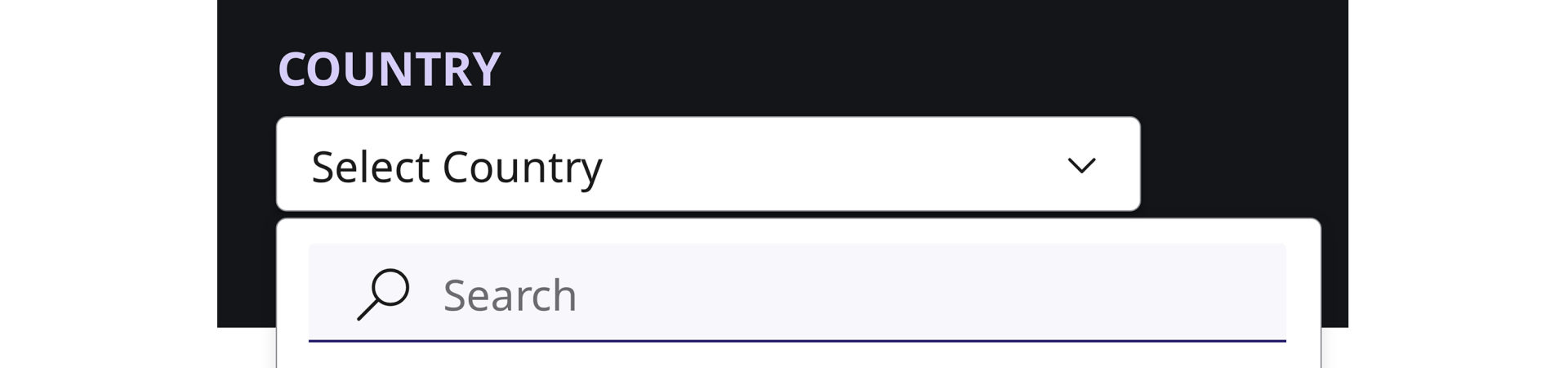
The search box now has its own formatting options for background, border and text. I gave mine a purple background with some transparency and added an accent bar in a darker purple. Open the dropdown again and the search box matches the rest of the slicer.
Before you use it in a real report
The dropdown option is still in preview. Microsoft can rename or move settings before it becomes generally available, and preview features need to be switched on in Desktop. I'd try it on internal reports first and wait a little before rebuilding every slicer in a client report.
Hope you like it!
Play around with all the formatting options. I'd love to hear which one you end up using most :)