
Build Claude Dashboards on Live Power BI Data
Claude can now build dashboards on live data from Snowflake, Databricks or a Power BI semantic model, and it shows you the query behind every number on the page. Fabric doesn't have a ready-made connector yet, so you need a small workaround with an app registration in Entra. Below is how I set it up and what I'd watch out for.
Oct 19
/
datatraining
With AI, anyone can put a dashboard together in a couple of minutes. That puts more weight on the back end. A vibe-coded dashboard on top of a single Excel file is not where you want to end up. Ideally the data comes from a proper semantic model, for example in Fabric, and Claude can now connect to one.
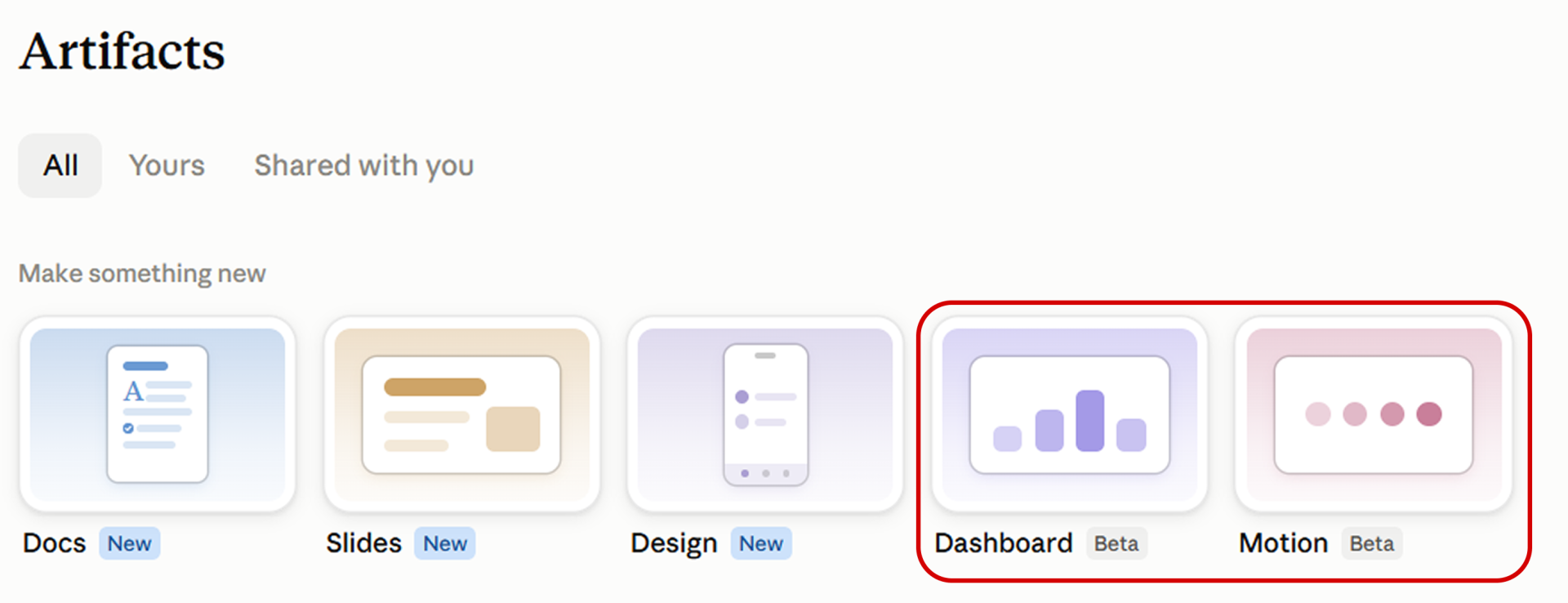
In Claude, go to Artifacts in the left-hand menu. You'll see two new types: Dashboard and Motion. Dashboard builds the dashboard. Motion turns what's on it into a short animated video. Let's start with the dashboard and come back to Motion at the end.
In Claude, go to Artifacts in the left-hand menu. You'll see two new types: Dashboard and Motion. Dashboard builds the dashboard. Motion turns what's on it into a short animated video. Let's start with the dashboard and come back to Motion at the end.
Connecting Claude to a semantic model in Fabric
Under Customize > Connectors there are standard connectors for Snowflake and Databricks. There isn't one for Fabric. Instead, we use the Power BI MCP server and add it as a custom connector.

The dashboard has to know who is looking at it, so it only returns the data that person is allowed to see. That runs through Entra ID, which is built into tools like VS Code and GitHub but not into Claude Desktop or ChatGPT. The workaround is to register an app in Entra and give its client ID to Claude. You only do this once, but you need the rights to create app registrations, or someone in your organization who has them.
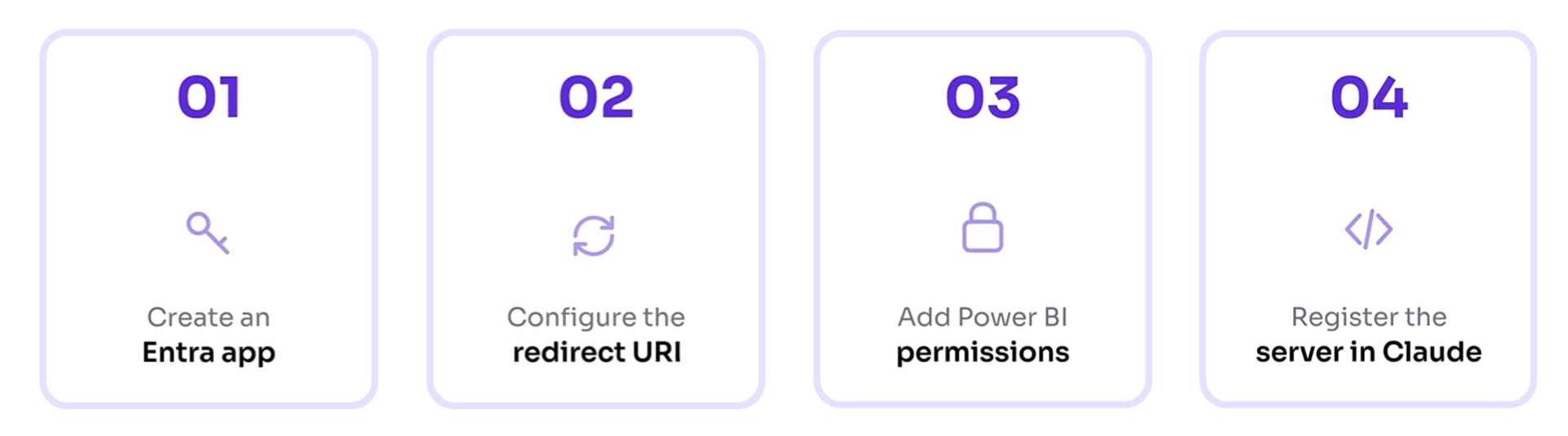
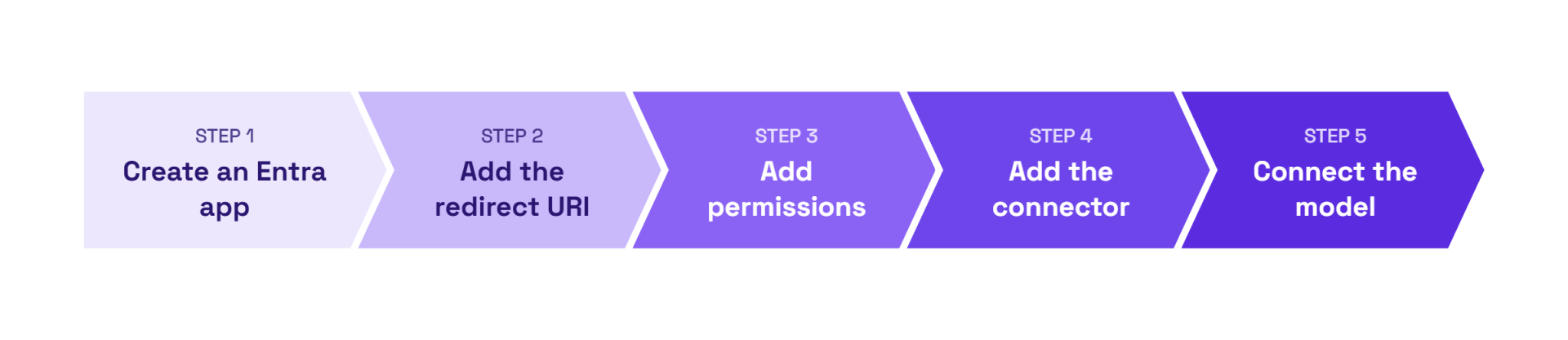
Before you start, check that the tenant setting for the Power BI Model Context Protocol server endpoints is switched on in the Fabric admin portal. Then follow the four steps above. Microsoft's documentation for the Power BI MCP server has the exact values you need.
1. Create an app registration in the Entra admin center (single tenant).
2. Under Authentication, add the redirect URI for mobile and desktop applications.
3. Add the four delegated Power BI Service permissions and grant admin consent.
4. In Claude, go to Customize > Connectors > Add custom connector, and paste the MCP server URL and the client ID of your Entra app.
The exact values you need
- Redirect URI for Claude: https://claude.ai/api/mcp/auth_callback
- Server URL for the Consumption server (the one I used): https://api.fabric.microsoft.com/v1/mcp/powerbi
- Server URL for the Authoring server (to pick models by name): https://api.fabric.microsoft.com/v1/mcp/powerbi/authoring
Leave public client flows off
In the video I switched on Allow public client flows. Microsoft's documentation says to leave it set to No unless your MCP client explicitly needs it, so you can skip that toggle.
This connector can't find a semantic model by name. Paste the model's URL from the Power BI service instead: the first GUID in it is the workspace, the second one is the semantic model, and Claude works out which is which. If you'd rather ask for a model by name, add the Power BI Authoring MCP server as a second connector with the same steps.
Building the dashboard
Building the dashboard
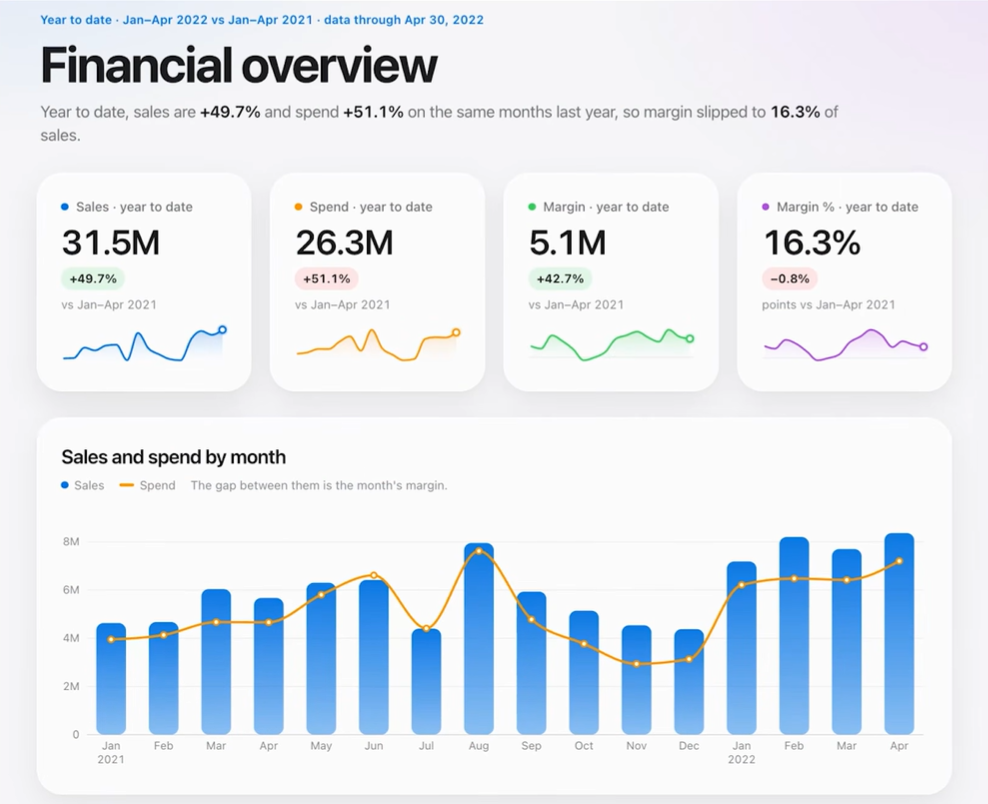
With the model connected, I wrote one prompt: "Build a pretty dashboard for financial executives." About five minutes later I had a working dashboard.
Under the hood it's HTML, CSS and JavaScript, and the visuals are built with D3. D3 gives you the building blocks for almost any chart you can think of, but compared to Fabric apps you have fewer options.
The first version looked okay, a bit plain. So I kept prompting: "I want the dashboard to be light. Make the design like Apple 2027 future, with smooth lines everywhere." The numbers stayed the same and the look changed completely. You could also ask for cross-filter interactions between visuals.
See the query behind every number
This is the feature people are most excited about. Click any number or visual and a panel opens with three tabs:
- Query shows the query that fetched the data. On a semantic model that's DAX. On other sources it can be SQL.
- Transform shows what happened to the result after it came back.
- Result shows the rows behind the visual, for example all the values for the KPI cards at the top.
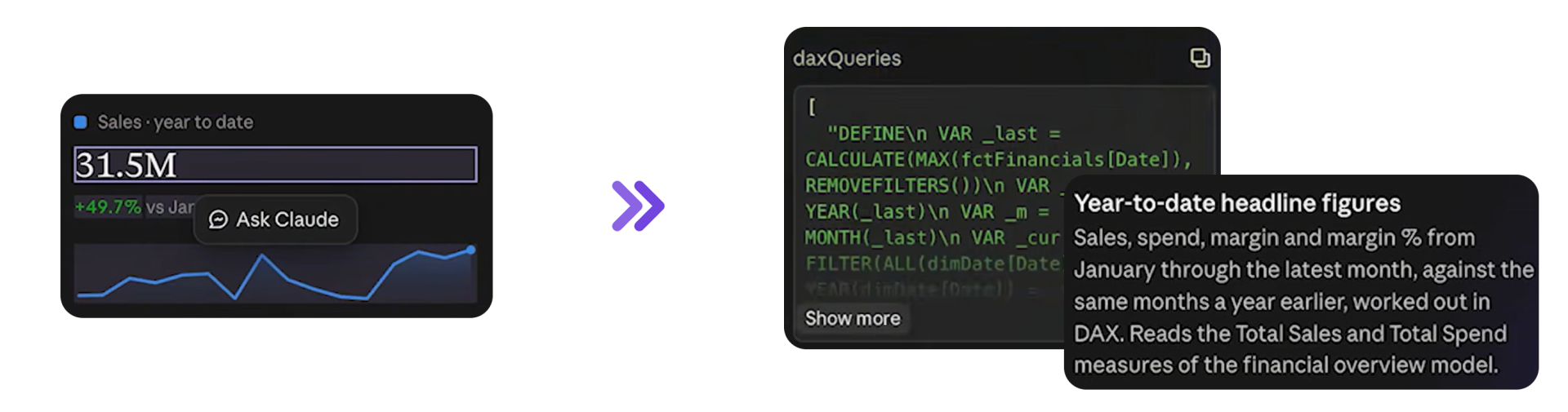
My model has basic measures like Sales and Total Spend, but no year-to-date measures. The dashboard shows year-to-date numbers anyway. Claude wrote those calculations itself, inside the queries.
That fills the gaps, but nobody checked whether Claude filled them correctly. Ideally the dashboard uses the measures from your model and only those. So make sure your semantic model covers what people will ask for, and click through the queries to check the visuals use the measures you set up.
That fills the gaps, but nobody checked whether Claude filled them correctly. Ideally the dashboard uses the measures from your model and only those. So make sure your semantic model covers what people will ask for, and click through the queries to check the visuals use the measures you set up.
Even with a perfect model, things can go wrong once everyone in the organization can build these dashboards.
Refresh, comments and sharing
Refresh, comments and sharing
At the top, the dashboard shows when the data was last updated, for example "updated 5 minutes ago". Click the refresh button and it pulls the latest data from the semantic model.
There's also a comment section. Comments can go to colleagues or to Claude. I clicked a visual and wrote "For negative values I would like a data label", and about a minute later the labels were there.
With the Share button you can share the dashboard with people in your organization. Because of the live connection, each person only sees what they're allowed to see in the semantic model.
With the Share button you can share the dashboard with people in your organization. Because of the live connection, each person only sees what they're allowed to see in the semantic model.
Public links are a different story. If your admin settings allow them, a public link shares a snapshot of the dashboard, and everyone with the link sees everything in it. I turned public links off in our tenant for that reason.
You can't export the dashboard to Fabric, which would have been nice. You can export it to a few other tools that many organizations use, and I expect that list to grow.
Motion: turn the dashboard into a short video
Once the dashboard is done, the next question is how to present the insights. That's what Motion is for, and the two artifacts work well together.
Go back to Artifacts, pick Motion, and give it a short prompt. Mine was: "Create a motion video with the latest insights" from the dashboard I had just built.
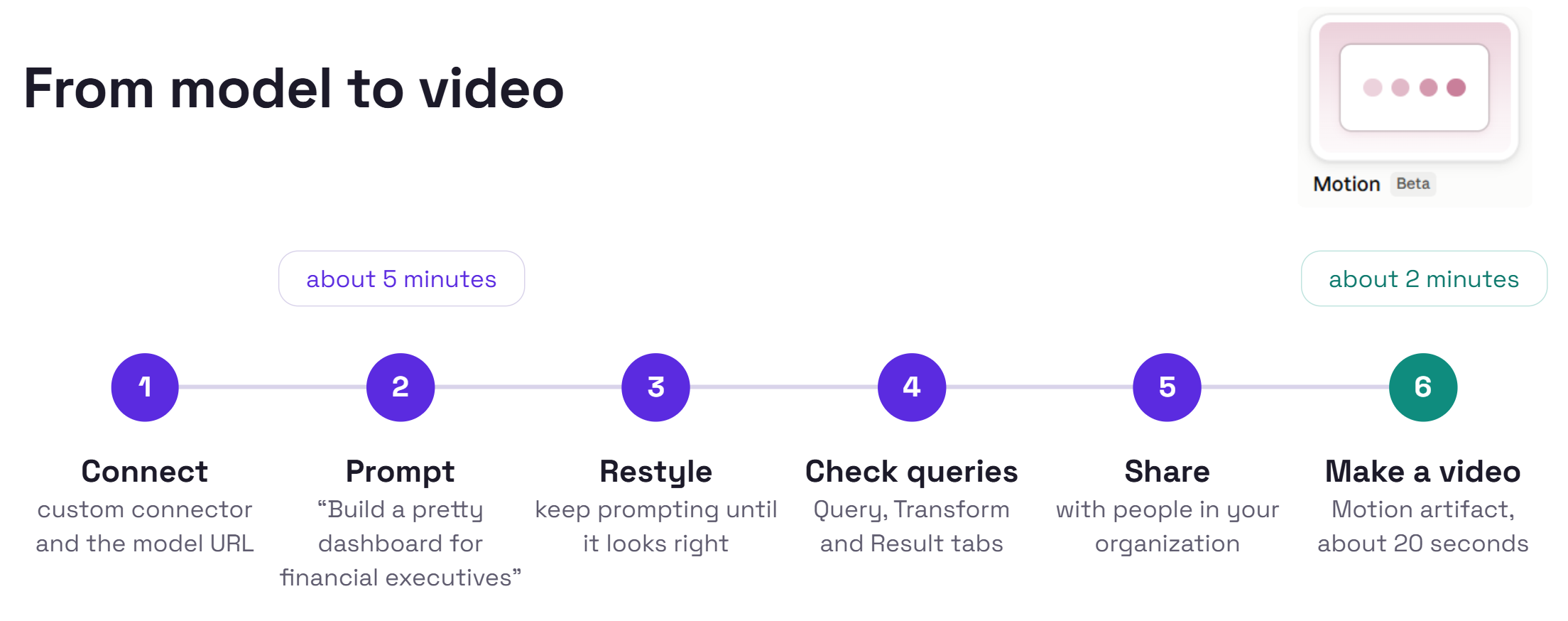
Before it builds anything, Claude asks a few questions. It offered four styles (Keynote stage, Living charts, Glass layers and Margin squeeze), a length, and a color scheme. I went with Living charts, 20 seconds, and the colors of my dashboard.

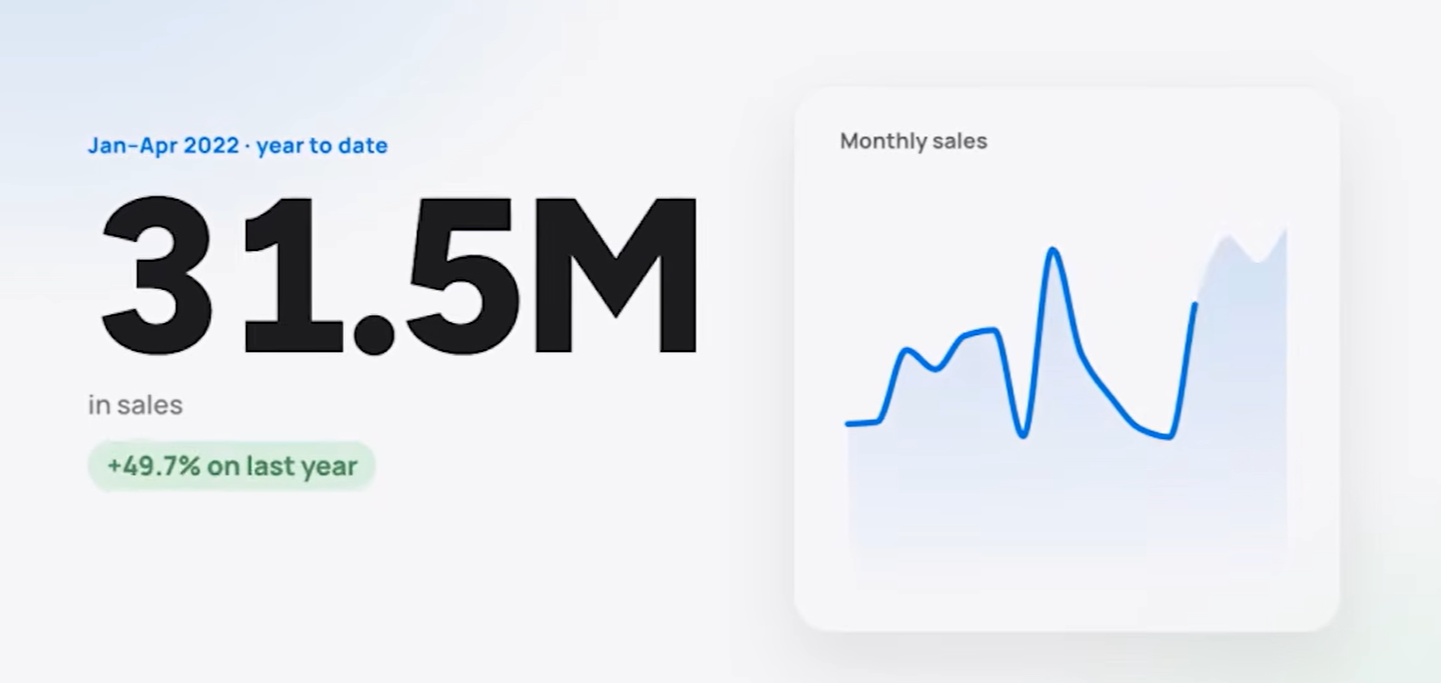
After about two minutes the first slide started to appear, and shortly after that the video was ready. Click play and the charts grow and move as the story runs. Claude generated all of it, which I found impressive.
You can keep prompting to change it, and there are a few style options built in, for example to switch between a light and a dark version.
Considerations
Dashboards and Motion are fun to play with. The question in everyone's head is whether this scales, and whether it's secure. Right now there are some limits:
Dashboards and Motion are fun to play with. The question in everyone's head is whether this scales, and whether it's secure. Right now there are some limits:
- No versioning. There's no development process behind the dashboard, so you can't track changes or roll back.
- Metric drift. Many of the metrics on my dashboard were calculated inside the queries, not in the semantic model. If I build a second dashboard with similar metrics, Claude calculates them again, possibly a bit differently.
- Sharing. The options are fine for a small team but not yet for a larger organization.
- Visuals and write-back. Visuals are D3 only. Fabric apps give you more options and support write-back, which you can't do here.
Claude will probably keep improving on all of these. And Fabric apps are not far behind. Once Power BI brings that development experience to Pro users, for example straight from Power BI Desktop, it will be as easy as building a Claude dashboard. Until then, I understand why everyone is jumping on these.
Hope you like it!
Have you connected Claude to one of your own semantic models yet? I'd love to hear how it went, and which measures it tried to invent.
How to Power BI
Watch it here

COMPANY
Write your awesome label here.
Embedding Power BI in Power Point
Intro Session